Writing Tools
Workspaces
A workspace decides which tools Fleuron shows for a book. A novel rarely needs tables or code blocks, and a cookbook rarely needs a Codex of characters. Choose a workspace and the tools you don't need step out of the way.
Each book has its own workspace, so your thriller and your writing guide can each look the way they should.
The four workspaces
- All Features shows every tool Fleuron has. This is where every book starts.
- Fiction hides tables, code blocks, callout boxes, and the Introduction, Foreword and Bibliography elements.
- Non-fiction hides the Codex, the Corkboard and Story Timeline, text conversations, written notes, verse, drop caps, and the Prologue and Epilogue elements. The Outliner stays.
- Customize lets you switch each of those tools on or off yourself.
A workspace hides tools in the menus, in the ✱ text feature menu, in the list of elements you can add and in Styles.
Note: A workspace never removes anything from your book. If your book already has a table or a prologue, it stays, and you can still edit or remove it.
Choosing a workspace for a new book
When you start a new book, Fleuron asks What kind of book is this?
- Tick Fiction, Non-fiction, All Features or Customize.
- Click Use This Workspace.
If you chose Customize, the Customize Workspace window opens next so you can pick your tools.
Changing the workspace
You can change a book's workspace at any time. Use whichever of these is handiest:
- Choose Fleuron ▸ Workspace, then the workspace you want.
- Choose File ▸ Book Settings… and pick one under Workspace (“The tools Fleuron shows for this book”).
- Open the ✱ menu in the editor toolbar. At the bottom it shows the workspace in use, and how many items it hides. Click Change….
Fleuron shows a short message saying what the new workspace hides.
Customizing your tools
- Choose Fleuron ▸ Workspace ▸ Customize.
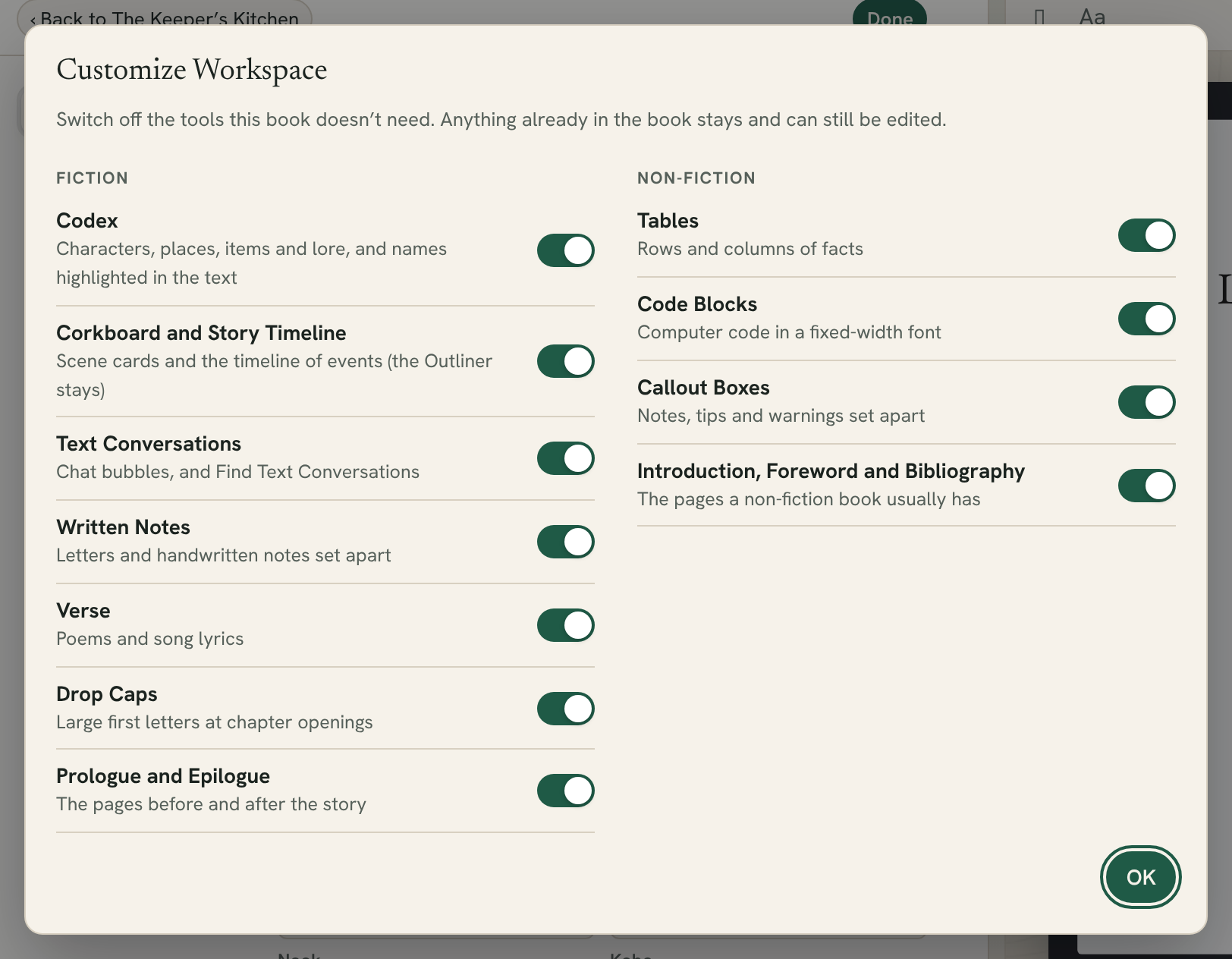
- In the Customize Workspace window, use the switches to turn tools on or off. They are grouped under Fiction and Non-fiction:
- Fiction: Codex, Corkboard and Story Timeline, Text Conversations, Written Notes, Verse, Drop Caps, Prologue and Epilogue
- Non-fiction: Tables, Code Blocks, Callout Boxes, Introduction, Foreword and Bibliography
- Click OK when you're done. Each change takes effect straight away.
Customize starts from the workspace you were using, so you only need to change the few tools you care about.
Tip: Switched off the Corkboard? The Corkboard button under your contents list then opens the Outliner instead. See Corkboard, Outliner and Timeline.