Styles and Preview
The Theme Builder
The theme builder lets you design your chapter headings piece by piece: the chapter number, the title, and how they sit on the page. This article walks through every setting and shows how to keep your heading as a style of your own.
Opening the heading settings
- Click Styles at the top of the sidebar.
- Select the style your book uses and click its ⚙ button (or click ⌄ and choose Configure Style…).
- Click Heading in the sidebar.
- Step through the heading cards with ‹ and › to start from a heading you like. Besides the heading of every style, there are five extra ones: Spaced capitals, Big numeral, italic title, Bold left, Roman between rules and Title only.
- Click ⚙ Settings under the cards to open Heading Settings.
To go back to the heading cards, click ‹ Heading Styles at the top, or Done at the bottom.
Size, numbers and colour
The first box sets the heading as a whole:
- Heading Size: Small, Medium or Large.
- Chapter Numbers: how the number is written: 1, One, Chapter 1, Chapter One, I, Chapter I, 01 or None.
- Title Size: a slider for the size of the chapter title.
- Accent Color: the colour of lines and other accents. Pick a swatch, or click the last swatch to choose any colour. Style default puts back the style's own colour.
Note: Black-and-white paperbacks print the accent colour in grey.
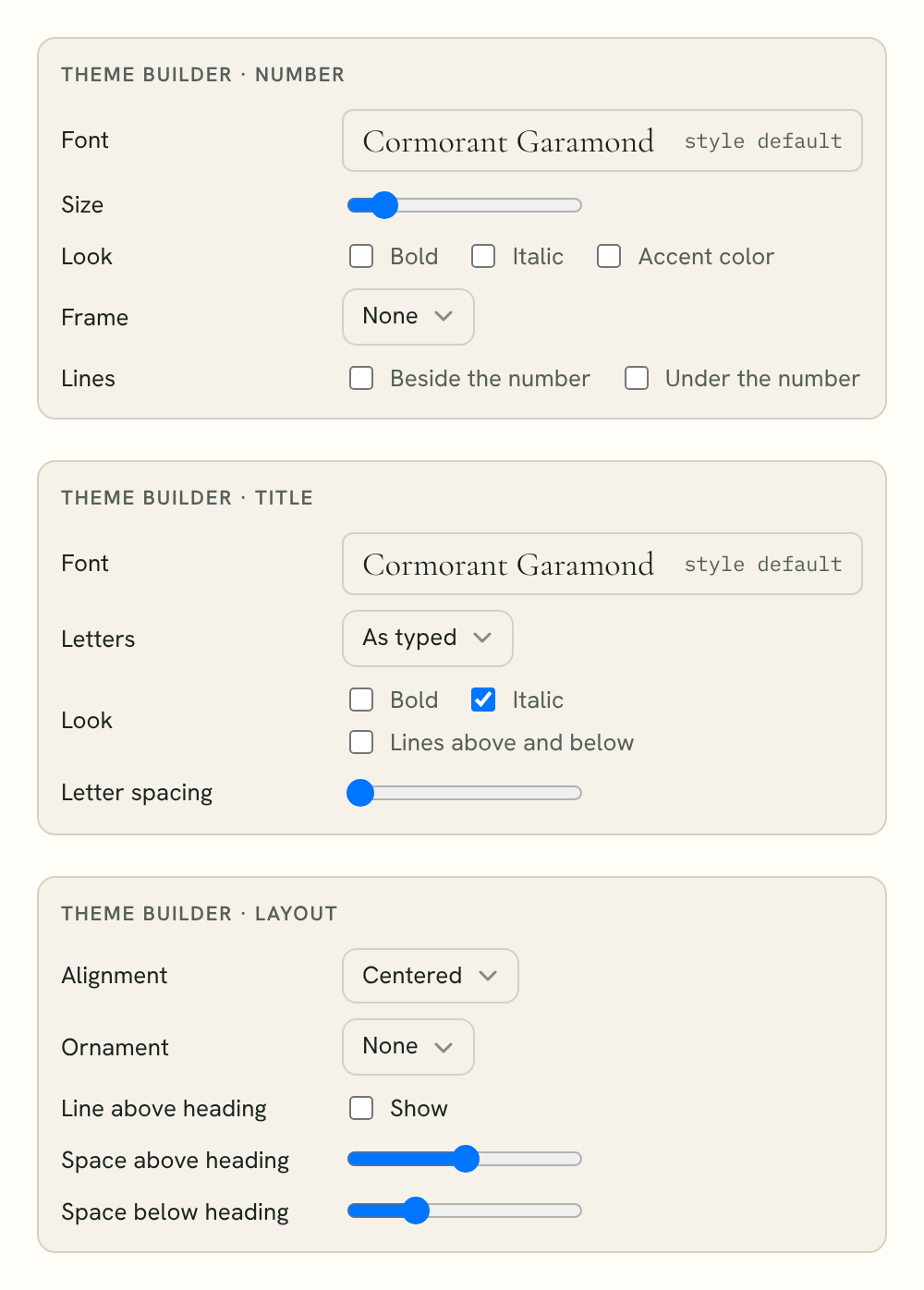
Theme Builder · Number
- Font: the font for the chapter number. It starts as the style's font; click it to choose another. See Fonts.
- Size: how big the number is.
- Look: Bold, Italic and Accent color.
- Frame: None, Circle, Square or Diamond around the number.
- Lines: Beside the number and Under the number.
Theme Builder · Title
- Font: the font for the title. This is the same as the book's Headings font in the Fonts part of the style.
- Letters: As typed, CAPITALS or Small Caps.
- Look: Bold, Italic and Lines above and below.
- Letter spacing: a slider that opens up the space between letters.
Theme Builder · Layout
- Alignment: Centered, Left or Right.
- Ornament: None, Above the number or Below the title.
- Line above heading: tick Show for a line across the top.
- Space above heading: how far down the page the heading starts.
- Space below heading: the gap between the heading and the first line of text.
Both space sliders work in the ebook and in print.
Undoing a setting
Every setting you change gets a small ↺ beside it. Click it to put that one setting back to the style's own.
To start again with the style's heading, click Use the style’s heading again at the bottom of the Layout box. This clears everything you set in the theme builder, including the chapter number font.
Heading images
If any chapter has a heading image, Heading Settings also shows a Heading Image box:
- Image Size: how wide the picture is.
- Position: Above heading or Below heading (only when the heading is centered).
- Include In: All Editions, Ebooks Only or Print Only.
To add a heading image to a chapter, see Chapter Headings.
Keeping your heading
Your heading settings are kept with the style in this book. To use the same heading in other books, save the style: click ‹ at the top of the sidebar to go back to the styles, click ⌄ on your style and choose Save Style…. See Applying Styles.
Tip: Watch the preview while you work. It turns to a chapter opening so you see every change as you make it. Switch the preview to Print to check the heading on a printed page too. See Previewing Your Book.