Generating and Publishing
Word Export and Narrator Script
Fleuron can save your book as a Word file (.docx), which is handy for an editor, a proofreader or beta readers. It can also make a narrator script: a Word file laid out for recording an audiobook. This article covers both.
Exporting a Word file
- Choose File ▸ Export Word File….
- Choose where to save the file and click Save.
You can also make a Word file at the same time as your ebooks: in the Generate window click Change…, then tick Word (.docx) under Other. See Generating Books.
What's in the Word file
The Word file holds your whole book as plain, tidy text with real Word styles:
- Your title, subtitle and author name at the top.
- Each chapter and other element starting on a new page, with its title as a Word Heading 1. Subheads become smaller headings.
- Bold, italics, small caps, lists, block quotes, verse, centred text, text conversations, tables and pictures.
- Footnotes and endnotes as real Word footnotes and endnotes.
- Scene breaks as
***.
The title page, half title and table of contents are left out, because Fleuron makes those for you.
If your book has tracked changes, the Word file reads as if every change were accepted.
Note: The Word file is for reading and editing, not for publishing. It doesn't keep your book's style, fonts or print layout. To publish, generate your ebooks and print PDF instead.
Bringing edits back into Fleuron
The Word file uses styles Fleuron (and Vellum) understand, so it can come back in with its chapters, notes and text features in place.
If your editor works in the Word file, you can bring their version back with File ▸ Reimport Word File…. See Importing Your Manuscript.
Tip: If you'd rather keep everything in Fleuron, Track Changes and comments work like Word's. See Track Changes and Comments.
Making a narrator script
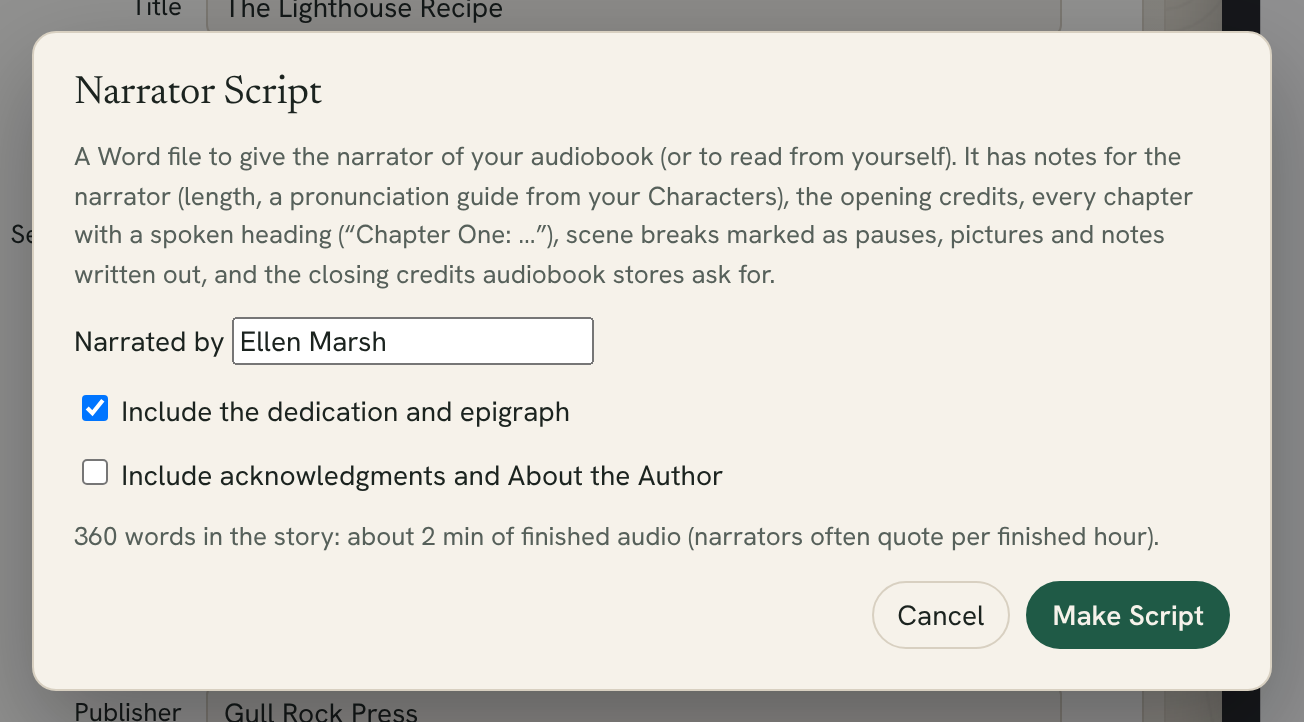
A narrator script is a Word file to give the narrator of your audiobook, or to read from yourself.
- Choose File ▸ Export Narrator Script (Audiobook)….
- Type the narrator's name in Narrated by. Fleuron remembers it for this book.
- Choose what to include:
- Include the dedication and epigraph (ticked at first).
- Include acknowledgments and About the Author.
- Click Make Script, then choose where to save it.
The window also shows how many words are in your story and about how long the finished audio will be. Fleuron estimates this at about 9,300 words per finished hour. Narrators often quote a price per finished hour, so this helps when you ask for quotes.
Your book itself isn't changed.
What's in the narrator script
- Notes for the Narrator (not for recording): the title, author, word count and length in finished hours, how the script is marked up, and a pronunciation guide.
- Opening Credits: the title and subtitle, the series and book number, "Written by" and "Narrated by".
- Every chapter, with a heading written the way it's spoken, such as "Chapter One: The Storm". Your prologue, parts, epilogue and other main text are included too.
- Scene breaks marked [Pause].
- Pictures written out as [Picture: …] with their description, and notes written out as [Note: …], so the narrator and you can agree whether to read them.
- Closing Credits: "The End.", who wrote and narrated the book, and the copyright and production copyright lines.
Note: Check the credits before recording. The production copyright line uses the publisher from Title Info, or your author name if there is none. Audiobook stores have their own rules for credits, so follow the guidance of the store or service you're using.
The pronunciation guide
The pronunciation guide lists the characters in your Codex, with their nicknames, how to say each name, and the first line of your notes about them.
To fill it in:
- Open the Codex with View ▸ Codex (Characters, Places, Items, Lore)….
- Choose a character and type how to say their name in Say it like, for example TAM-zin.
The next narrator script you make includes them. See The Codex.