Backgrounds and Borders
You can give your paperback a border in the margins, and a picture behind the opening page of each chapter or behind every page. Backgrounds and borders are print only: your ebooks don't have them.
Opening Background & Border
- Click Styles at the top of the sidebar.
- Select your book's style and click its ⚙ button (or click ⌄ and choose Configure Style…).
- Click Background & Border in the sidebar.
The preview switches to Print so you can see the result.
A book has one page border and one background picture. You can use both together.
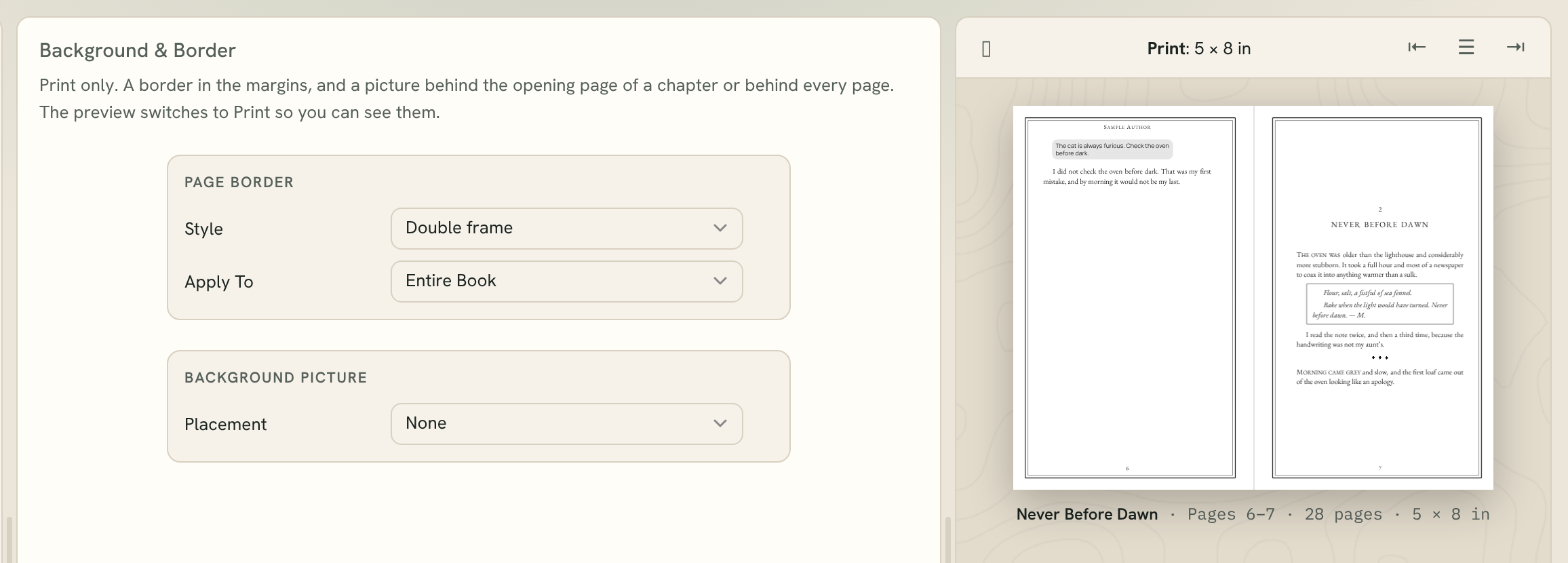
Adding a page border
Under Page border, choose a Style:
- Single frame, Double frame or Corner brackets: ready-made borders drawn as fine lines.
- Your picture: a border image of your own.
- None: no border.
For Your picture, choose the image, then set:
- Image Extent: Safe Zone keeps the picture inside the printer's safe area; Full Bleed runs it to the edge of the paper.
- Mirror: tick Mirror on left pages to flip the picture on left-hand pages.
- Position: for short, wide images, Top or Bottom of the page.
A tall, narrow image goes in the outside margin; a short, wide one at the top or bottom. Fleuron shows the ideal size for the picture in pixels.
Adding a background picture
- Under Background picture, set Placement to Behind chapter openings or Behind every page.
- Choose your picture.
- Adjust the settings:
- Image Extent: Text Margins, Safe Zone or Full Bleed.
- Image Scale: Fill Page or Fit to Page.
- Image Presence: how strong the picture is. Slide it left to fade it behind the text.
- Text Color: Default (black) or White, for a dark picture.
To change the picture later, click Replace Image…. To remove it, set Placement to None.
Tip: Keep a background soft so the text stays easy to read. A faded picture behind chapter openings often looks better than a strong one behind every page.
Choosing where they go
Use Apply To to choose which pages get the border or background:
- All Chapters
- All Parts and All Volumes, when your book has them
- Entire Book (not for chapter openings)
- Chosen elements: tick the elements you want in the list that appears
You can also choose for one element at a time: select it and use Chapter ▸ Heading Background, Chapter ▸ Page Background or Chapter ▸ Page Border. These list the backgrounds and borders set to Chosen elements.
Bleed and colour
A full-bleed border or background needs bleed, and Fleuron adds it to the print PDF by itself. Pictures print in grey unless you set Images to Color in File ▸ Print Settings…. See Print Overview and Settings.