Writing Tools
Snapshots and Versions
Fleuron gives you two safety nets. A snapshot keeps a copy of one chapter, so you can rewrite it freely, compare the two side by side and go back if you want. Version history keeps copies of the whole book as you work, and you can name the important ones, like “Sent to editor”. This article covers both.
Taking a chapter snapshot
- Open the chapter.
- Choose Chapter ▸ Take Snapshot.
That's it. Fleuron keeps a copy of the chapter as it is right now.
To give the snapshot a name, such as “Before cutting the flashback”, choose Chapter ▸ Snapshots… and click Take Snapshot Now… instead. The name is optional.
Snapshots work for chapters and any other element you write text in. Fleuron keeps the 25 newest snapshots of each one.
Comparing a chapter with a snapshot
- Open the chapter and choose Chapter ▸ Snapshots….
- Click a snapshot in the list.
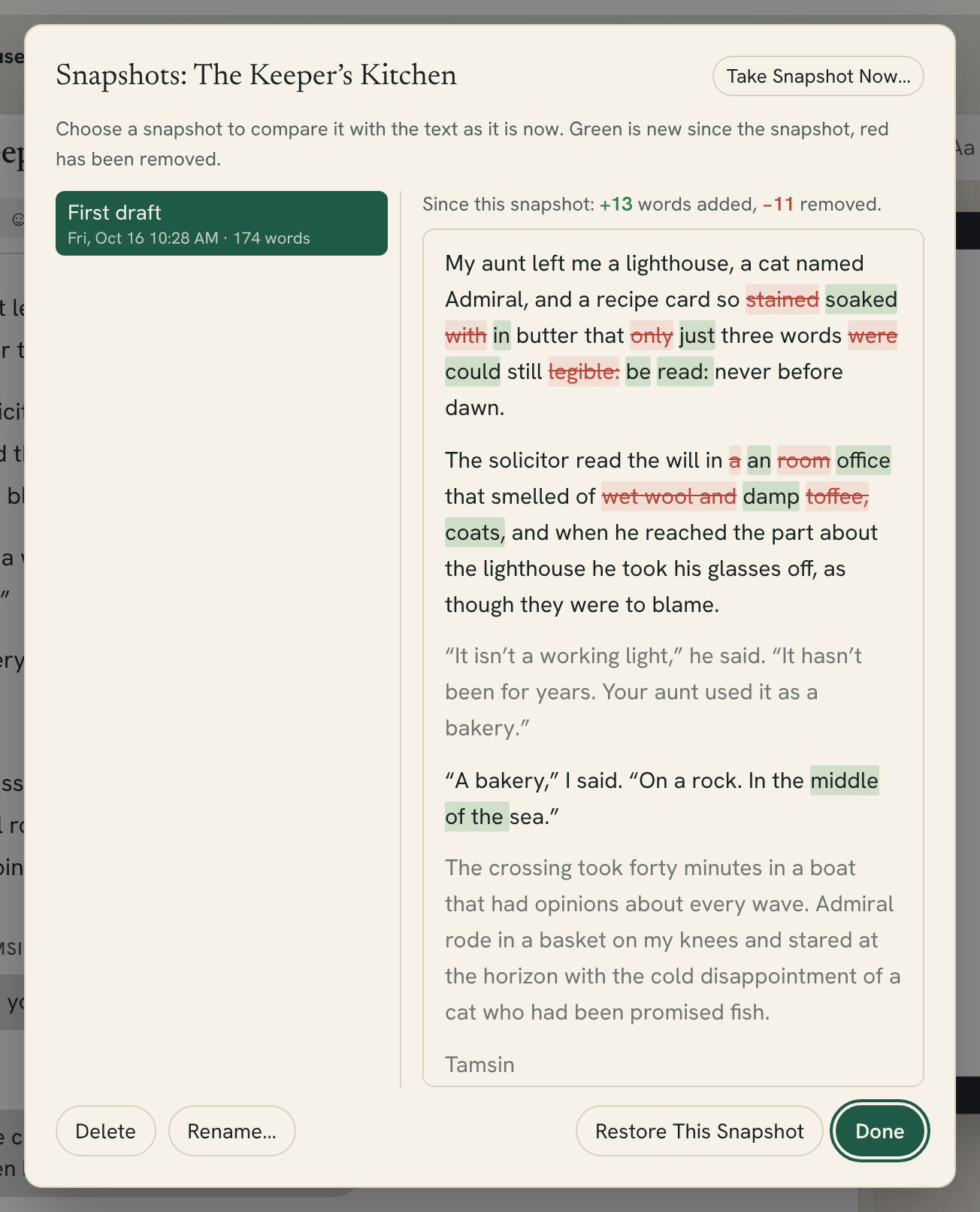
Fleuron shows the snapshot against the chapter as it is now. Words in green are new since the snapshot; words in red have been removed. A line at the top sums it up, for example “+120 words added, −340 removed”.
Going back to a snapshot
- In Snapshots, click the snapshot.
- Click Restore This Snapshot, then Restore.
Before restoring, Fleuron takes a snapshot of the chapter as it is now, called “Before restoring”. So if you change your mind, you can switch back.
You can also Rename… or Delete a snapshot. Deleting a snapshot doesn't change the chapter.
Note: Snapshots are saved inside your book file, so they go wherever the book goes.
Version history of the whole book
Fleuron keeps versions of your whole book by itself:
- when you open the book
- every 5 minutes or so while you write
- before anything replaces the book, such as restoring an older version, reimporting your Word file, or renaming a character everywhere
The newest 30 versions are kept, plus one a day for the last two weeks. Versions you star or name are kept for good.
To see them, choose File ▸ Revert to Saved / Version History…. Each version shows when it was saved, the title, the number of words and chapters, and why it was made.
Saving a named version
Before a big step (sending the book to your editor, starting a rewrite), save a version with a name:
- Choose File ▸ Revert to Saved / Version History….
- Click Save a Named Version….
- Type a name, such as “Sent to editor”, and click Save Version.
A named version is starred and kept for good. Fleuron also keeps a named backup copy of the book file in its backups folder. See Saving, Files and Backups.
You can also star any version with the ☆ button, or name it later with Name…. The Starred & Named tab shows just those.
Restoring an earlier version
- Choose File ▸ Revert to Saved / Version History….
- Find the version you want and click Restore, then Restore again.
Your book as it is now is saved in the history first, so you can switch back.
Click Download beside a version to save it as a separate file. You can open that file with File ▸ Open….
Note: Version history is kept by Fleuron on this Mac, not inside the book file. For copies kept as files beside your book, see the automatic backups in Saving, Files and Backups.