Library and Series
The Library
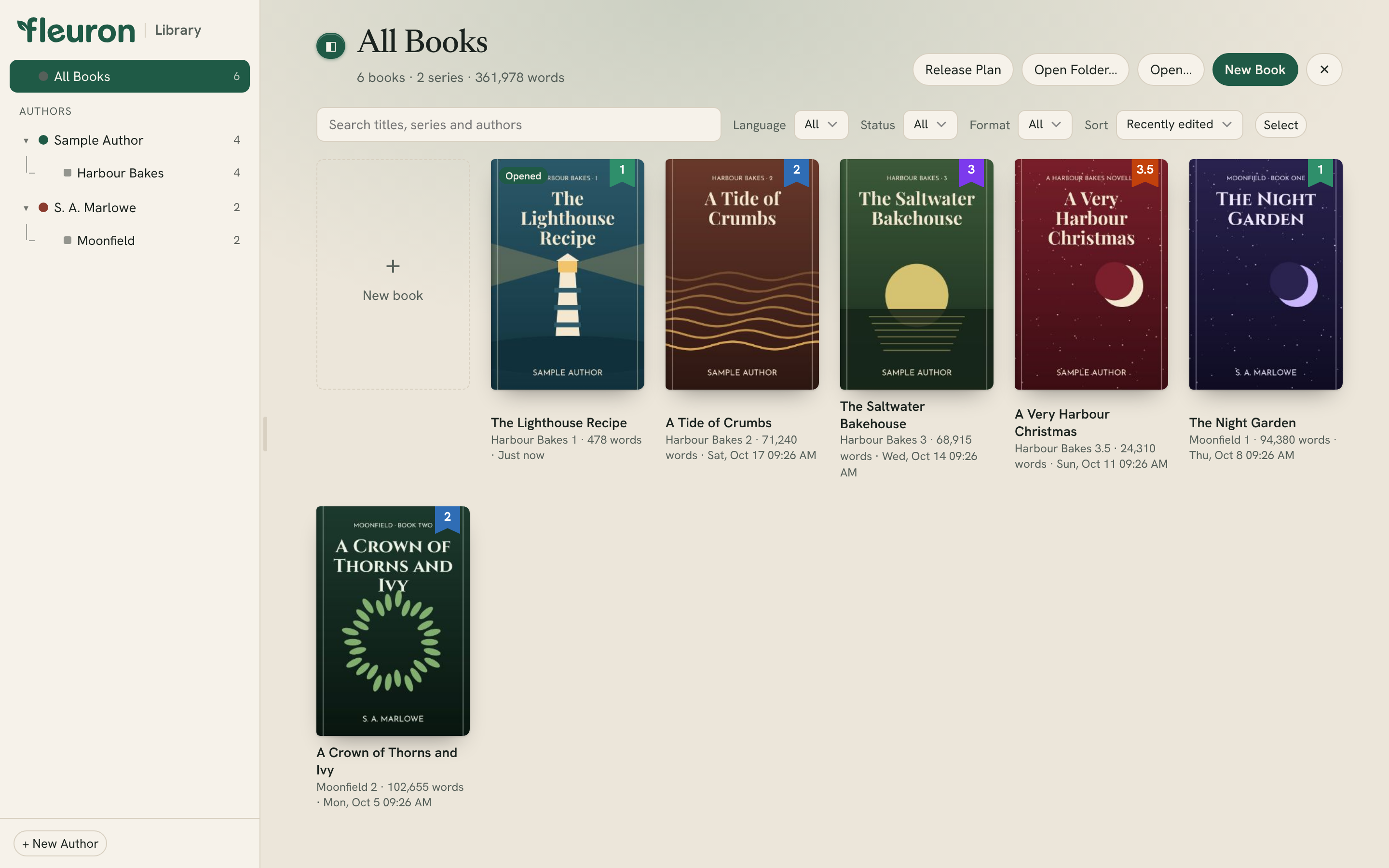
The Library is where all your books live in Fleuron. It shows each book's cover, series and word count, groups books by author and series, and lets you open, sort and organise them. This article explains how to find your way around it.
Opening the Library
The Library has its own window. Each book you open from it gets a window of its own.
- Choose Fleuron ▸ Library… or File ▸ Library… (⇧⌘L).
- Or choose Window ▸ Library.
- Press ⌘` to switch between the Library and the book you were last working on. Press it again to go back.
Opening a book
Click a book's cover to open it. If a book is already open, its cover is marked Opened.
To open several books at once, click Select, click each book, then click Open.
Adding books
The buttons at the top right of the Library:
- New Book starts a new book. If you've chosen an author in the list on the left, the new book is theirs.
- Open… opens a Fleuron book, or brings in a Word, Markdown, Vellum, EPUB or text file. See Importing Your Manuscript.
- Open Folder… finds the books in a folder and lets you choose which come in. See Opening a Folder and Series.
The authors list
The list on the left shows All Books, then each of your authors (pen names), then No author set for books that don't belong to one.
Under each author you'll see their series, and, when they have books in two or more languages, each language. Where a series or language has both print and ebook editions, you'll see Print edition and Ebook edition too. Click any entry to show just those books. Click the small arrow beside an entry to fold or unfold what's under it.
- Drag the divider beside the list to make it wider or narrower.
- Click ◧ at the top left, or choose View ▸ Navigator, to hide or show the list.
To add an author, click + New Author at the bottom of the list. See Author Profiles and Back Matter.
Book covers
Each book shows its cover. A book with no cover gets a plain one in its author's colour, with the title and author name.
On the cover you may also see:
- A coloured number for the book's place in its series.
- A band naming the edition, such as Print edition or German edition.
- Pre-order with the release date, or Published. See Book Status and Release Plan.
Below the cover are the title, series, word count and when you last worked on it, and the name of the book's Fleuron file. Not saved to a file means the book is only in the Library so far: open it and choose File ▸ Save to keep it as a .fleuron file on your computer. See Saving, Files and Backups.
Searching, filtering and sorting
Above the books:
- Search titles, series and authors: type part of a title, series or author name.
- Language: show books in one language only.
- Status: show only Draft, Pre-order or Published books.
- Format: show only Ebook or Print editions.
- Sort: By author (each author with their series shelves), By series (a shelf for each series in reading order), Recently edited or Title.
Fleuron remembers your filters and sort order for next time.
Above the covers, Fleuron shows how many books, series and words are on show.
The book menu
Click ⋯ on a book's cover for more:
- Open
- Series: put the book in a series, start a New Series…, set its Number in Series…, or choose Not in a Series. See Series.
- Status: Draft, Pre-order… or Published.
- Edition Label…: a few words across the cover, like Print or Large Print, to tell versions of the same book apart.
- Language: the language the book is written in.
- Move to Author: give the book to another of your authors.
- Show in Finder and Copy File Location, for a book saved as a file.
- Remove from Library…
Note: Remove from Library… takes the book out of Fleuron's Library, but its .fleuron file stays in its folder, so you can open it again.
Changing several books at once
- Click Select.
- Click the books you want. Each one shows a number in the order you clicked it.
- Use the buttons in the bar that appears:
- Open opens them all.
- Put in a Series… and Take Out of Series.
- Change ▾ sets the Language, Move to Author or Edition Label… for all of them.
- Remove… takes them out of the Library.
- Select All chooses every book on show.
- Click Done (or press Esc) when you've finished.
Reminders
At the top of the Library, Fleuron shows reminders when a pre-order is coming up, or when some books look like they belong to a series they aren't in yet. Click ✕ on a reminder to hide it. See Book Status and Release Plan and Series.
Tip: Your Library lives on your computer, like your books. Nothing is uploaded anywhere.