Print Cover Template
A paperback cover is one wide image: the back cover, the spine and the front cover, plus bleed around the edge. Its size depends on your trim size, page count and paper. Fleuron works it out and makes a template you can give to your cover designer, or use as the bottom layer in Canva, Affinity or Photoshop.
Opening the template
Choose File ▸ Print Cover Template….
Fleuron counts your pages with your current print settings and fills them in. The Trim comes from your Print Settings; to change it, choose File ▸ Print Settings…. See Print Overview and Settings.
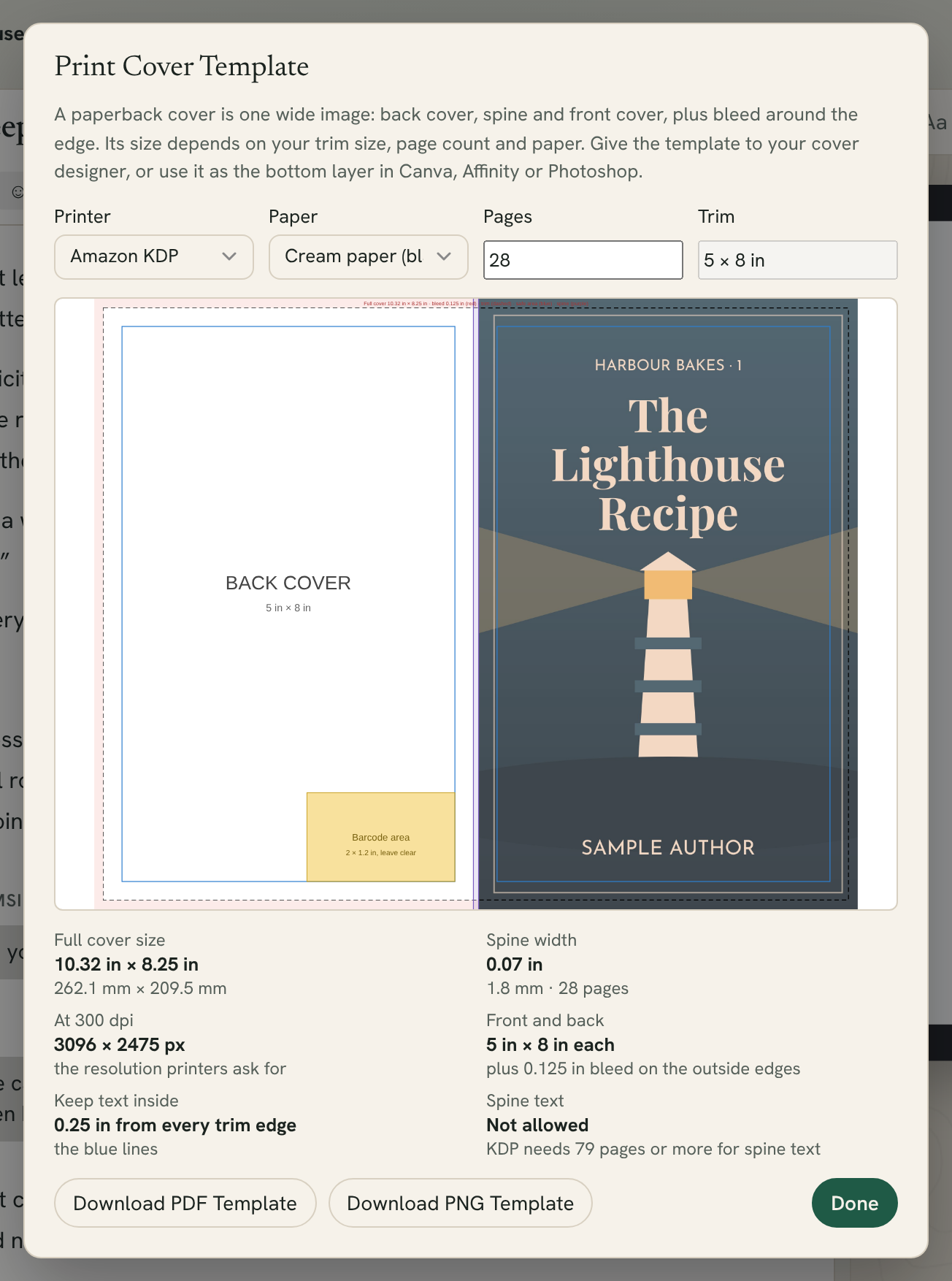
Setting it up
- Choose your Printer: Amazon KDP or IngramSpark.
- Choose your Paper. For KDP: White paper (black ink), Cream paper (black ink), Standard colour or Premium colour. For IngramSpark: White 50 lb, Creme 50 lb, Groundwood 38 lb or Colour 70 lb.
- Check the number of Pages. You can type a different number, for example while your book is still growing.
Paperbacks have at least 24 pages, and pages come in pairs, so Fleuron rounds an odd page count up and tells you when it does.
Reading the template
The drawing shows your cover laid flat, with your book's cover picture on the front. Beside it, Fleuron lists:
- Full cover size, in inches and millimetres
- Spine width, for your page count
- At 300 dpi: the size in pixels, the resolution printers ask for
- Front and back: the size of each, plus 0.125 in bleed on the outside edges
- Keep text inside: 0.25 in from every trim edge (the blue lines)
- Spine text: whether text on the spine is allowed. KDP needs 79 pages or more.
The template is colour-coded: bleed in red, the trim line dashed, the safe area in blue and the spine in purple. A yellow box at the bottom right of the back cover marks the barcode area, 2 × 1.2 in, to leave clear.
Downloading the template
Click Download PDF Template or Download PNG Template. Both are full size at 300 dpi, named with your book's title and page count.
The downloaded template shows only the guides, not your cover picture, so you or your designer can place the artwork on top.
Note: IngramSpark's paper thickness varies a little by binding and printer. Before you upload, check the size with IngramSpark's own cover template generator.
Tip: Make the cover template last, once your text and print settings are final. Every change in page count changes the spine width.