Printed Edges
Printed edges put a picture or a colour on the edges of your paperback's pages, like the special editions authors sell from their own sites. Fleuron cuts your picture into a thin strip for every page and adds the strips to the print PDF, ready for KDP and other print-on-demand printers.
Turning on printed edges
- Click Styles at the top of the sidebar.
- Select your book's style and click its ⚙ button (or click ⌄ and choose Configure Style…).
- Click Special Edition in the sidebar. If you don't see it, change the menu at the bottom of the sidebar to All Features.
- Under Printed Edges, tick Print a picture or colour on the page edges.
The preview switches to Print. The edge starts as a plain colour until you choose a picture.
Note: Special Edition is listed under Features in Book when the book is a print edition. To mark it as one, click the edition label beside the book's title at the top of the window and choose Print edition or Paperback edition.
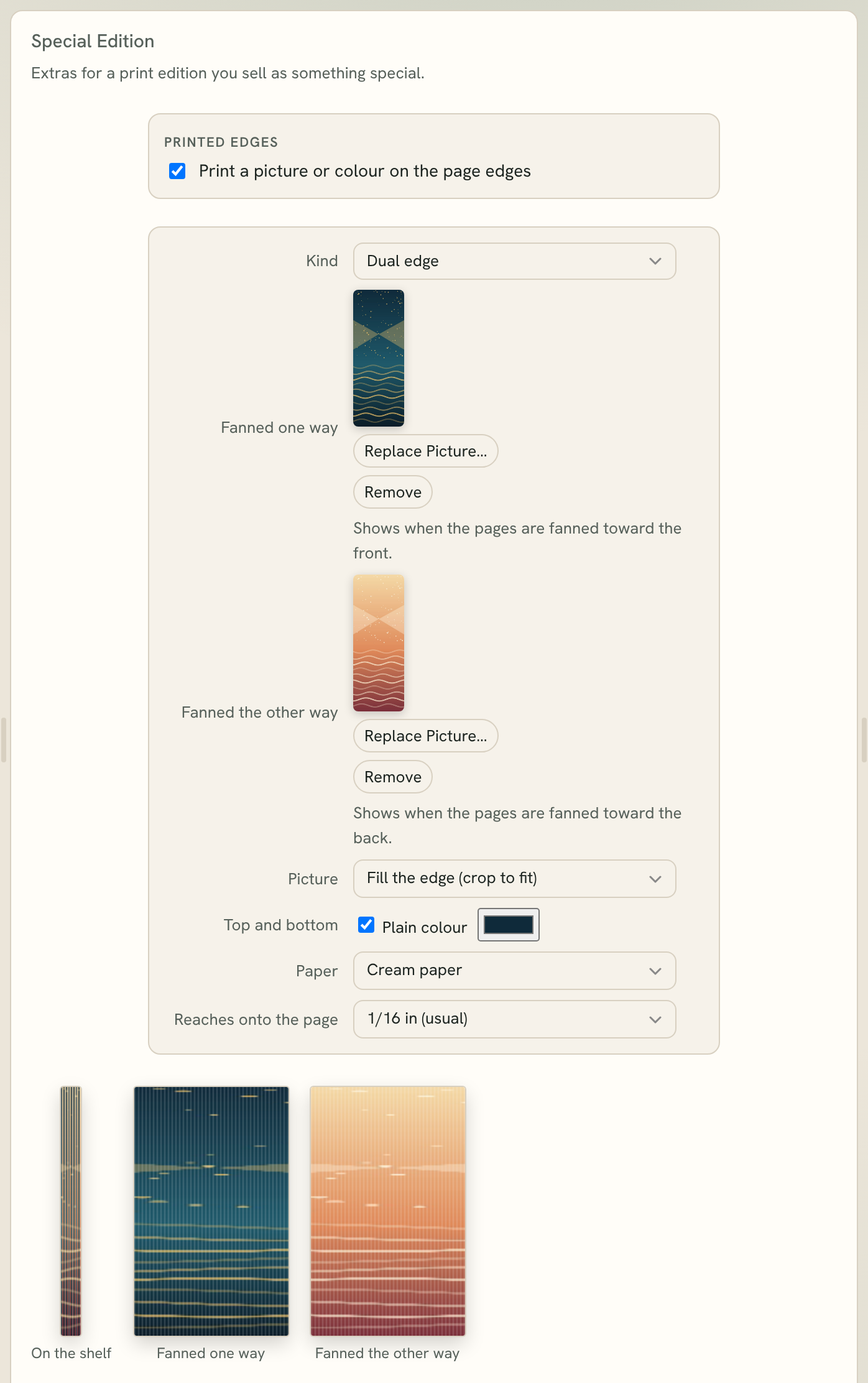
Choosing the kind of edge
Choose a Kind:
- One picture: a single picture across the edge.
- Dual edge: two pictures. One shows when the pages are fanned toward the front, the other when they're fanned toward the back.
- Two books in one: one picture for the first book and another for the second. Choose where the second book begins in Second book starts at.
- Part of a series: one picture that runs across the edges of a whole series. Under This book, set Book 1 of 3 (for example), and this book carries its share of the picture.
Adding the picture
- Click Choose Picture… and pick an image.
- Under Picture, choose Fill the edge (crop to fit) or Stretch to the edge.
To use a plain colour instead, leave the picture out and pick a colour beside Or a colour.
Below the settings, Fleuron shows the edge On the shelf and, for some kinds, how it looks when the pages are fanned.
Getting the size right
The edge is as tall as your trim size and as thick as all your pages together. Fleuron shows the exact size to give a designer, in inches and in pixels at 300 dpi, for your page count and paper.
Set Paper to the paper you'll print on: White paper, Cream paper or Colour paper. Paper thickness changes the size of the edge.
Tip: Finish your text and print settings first. The edge size depends on the page count, so it changes if your book gets longer or shorter.
Other settings
- Top and bottom: tick Plain colour and pick a colour to colour the top and bottom edges too.
- Reaches onto the page: how far the strip reaches in from the edge of each page. 1/16 in (usual) is right for most books.
Colour or black and white
If your interior is black and white, the edge prints in greys at the price of a normal paperback. For a coloured edge, choose File ▸ Print Settings… and set Images to Color. Standard colour is enough. See Print Overview and Settings.
Before you order
The print PDF always includes bleed for the edge. Every page carries a thin strip at its edge, so faint lines at the top and bottom of the pages are normal. A plain colour or a soft fade there hides them.
Tip: Order a proof copy first. Ordering 20 to 30 copies at a time keeps the edges neat.