Getting Started
Fleuron Tutorial
This tutorial walks you through making your first book in Fleuron: bringing in your manuscript, checking it, filling in the title and cover, choosing a style, previewing it, and generating ebooks and a print-ready PDF. Each step links to an article with more detail.
You'll need your manuscript as a Word file (.docx). Fleuron also reads Scrivener, Vellum, EPUB, OpenDocument, RTF, Markdown, HTML and plain text, so use whichever you have.
Step 1: Prepare your manuscript
A few minutes of tidying in Word saves a lot of fixing later. The most important things:
- Give each chapter title Word's Heading 1 style, or start it with a line like "Chapter 12" or "Prologue". Fleuron starts a new chapter at each one.
- Put *** or # on its own line for a scene break, and don't leave empty lines anywhere else. Fleuron reads an empty line as a scene break.
- Don't indent with Tab or spaces, and don't press Enter twice between paragraphs. Your book style takes care of indents and spacing.
- Leave out the title page, copyright page and table of contents. Fleuron makes those for you.
Tip: Fleuron has the full list of tips built in. Choose File ▸ Import Tips….
Step 2: Import your manuscript
When you open Fleuron, the Library window appears.
- Click Open… at the top of the Library (or choose File ▸ Open…, ⌘O).
- Choose your Word file and click Open.
Fleuron reads the file, adds the book to your Library, and opens it in its own window. Your chapters appear in the sidebar on the left, the text of the chosen chapter in the middle, and a preview of the book on the right.
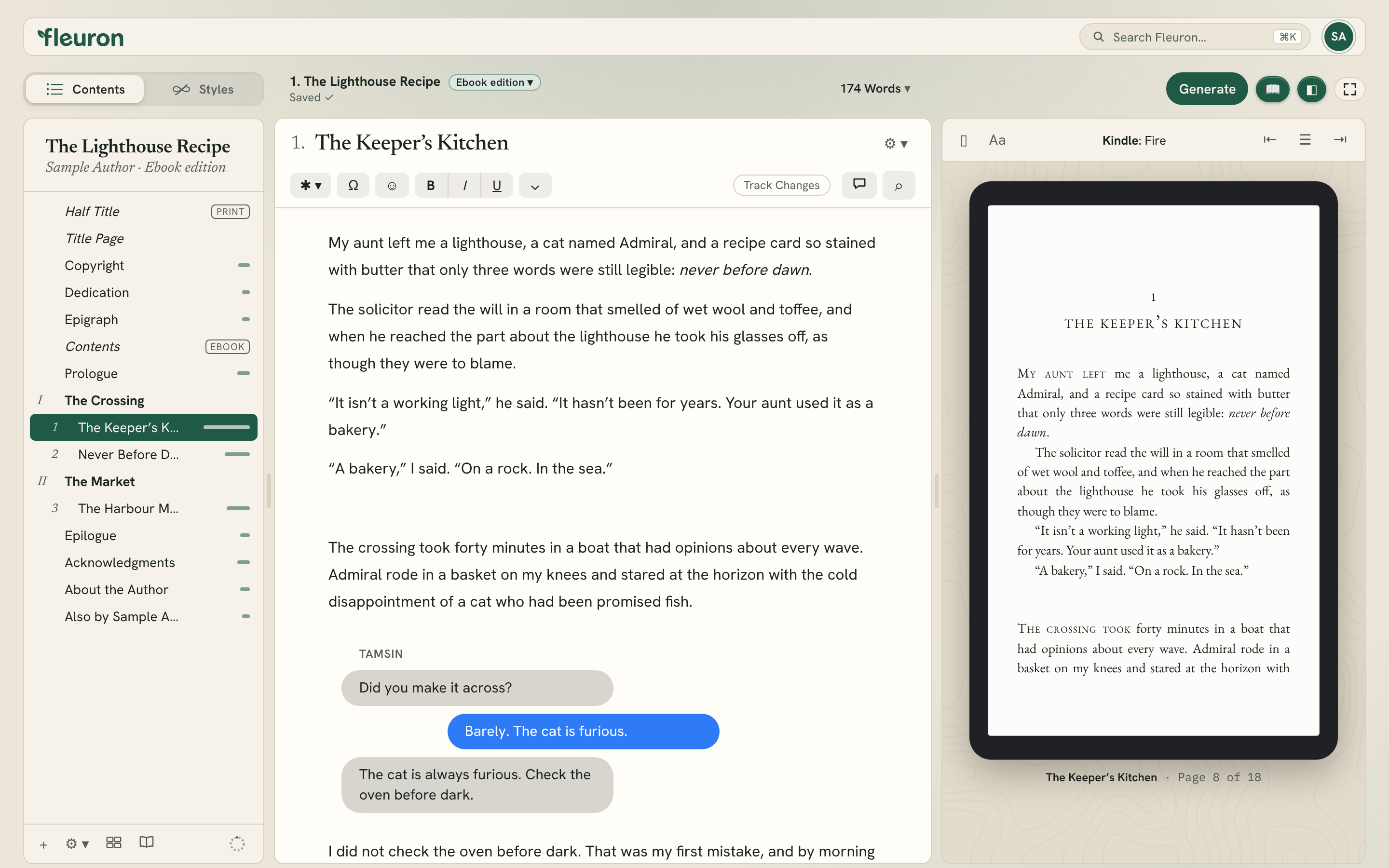
Fleuron has also added a title page, a copyright page and a table of contents at the start of your book.
Learn more in Importing Your Manuscript and A Tour of the Window.
Step 3: Check your import
Next, let Fleuron look over the import for you.
- Choose File ▸ Check Import….
- Read through the list. Fleuron points out things like missed chapter breaks, very long or short chapters, double spaces, straight quotes, double hyphens and underlining.
- Click Show to see each one in your text, or click its fix button (such as Make Curly or Make Em Dashes) to fix them all at once.
- Click Done.
If you see Nothing to fix, you're ready to move on.
Tip: Made changes in Word after importing? Choose File ▸ Reimport Word File…. Everything you added in Fleuron stays in place.
Step 4: Save your book as a file
Your book is kept in Fleuron's Library, but it isn't saved as a file yet. The status under the book's title says Not saved to a file yet.
- Choose File ▸ Save (⌘S).
- Choose the folder where you want to keep the book. It can be any folder, including your Dropbox, Google Drive, OneDrive or iCloud folder.
- Click Save.
From now on, Fleuron saves your book by itself as you work, and keeps backup copies in a Fleuron Backups folder next to it. See Saving, Files and Backups.
Step 5: Add the title, author and cover
- Click the book card at the top of the sidebar, showing your title and author. Title Info opens.
- Check the Title and fill in the Subtitle, Series Name and Author if your book has them.
- Click the Ebook Cover tab, then click the cover box and choose your cover image. It should be at least 2560 pixels high.
The title page updates from what you type here. The cover goes at the start of every ebook; it isn't used in print. See Title, Author and Book Settings.
Step 6: Look over your chapters
Click any chapter in the sidebar to see and edit its text. You can type in Fleuron just as in Word.
- To add a chapter, click + at the bottom of the sidebar.
- To add other pages, such as a dedication, an Also By page or About the Author, click ⚙ ▾ at the bottom of the sidebar and choose Add Element.
- To move a chapter, drag it up or down in the sidebar.
Learn more in Elements of Your Book, The Text Editor and Adding Text Features.
Step 7: Choose a style
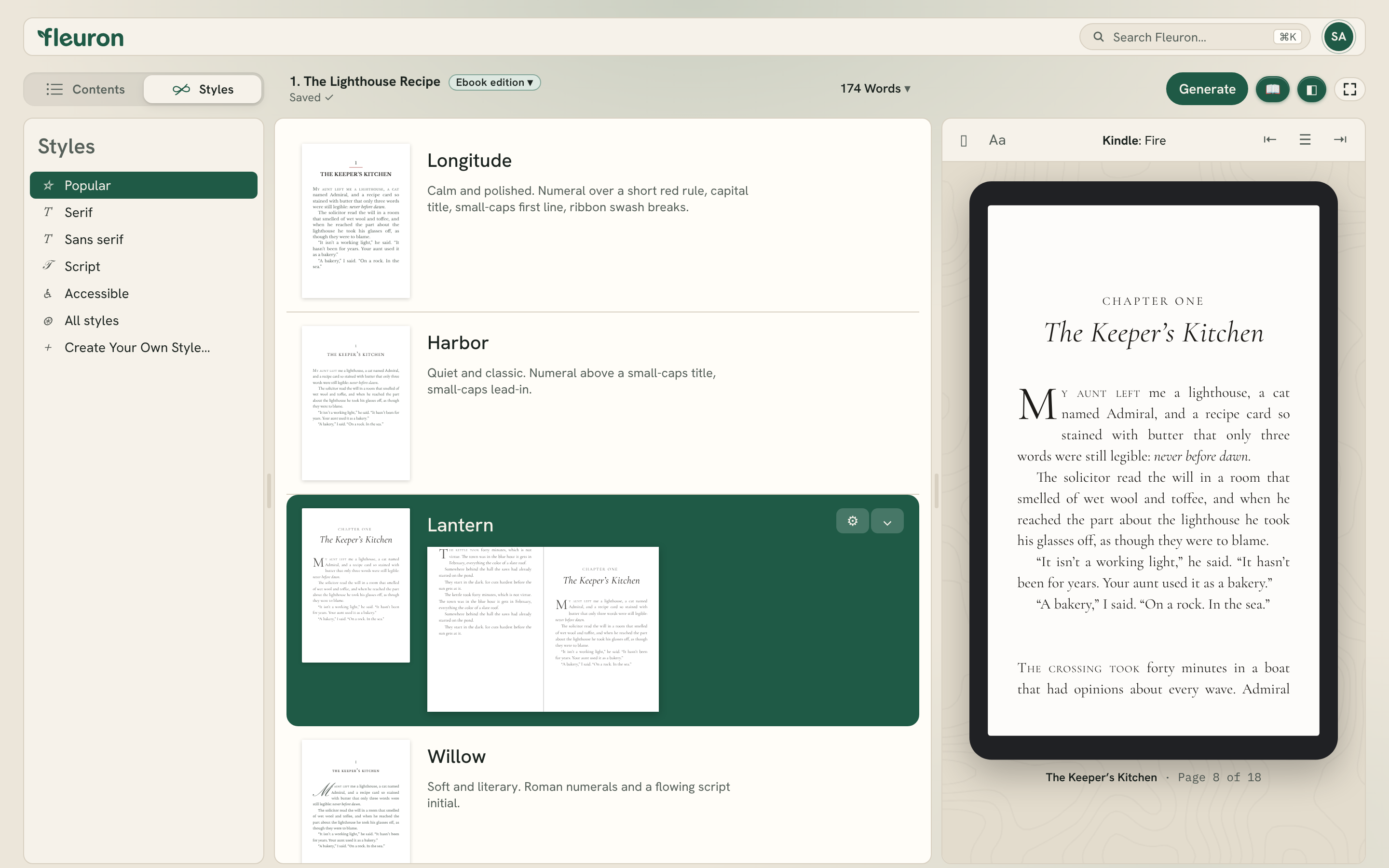
The style sets how your book looks: the chapter headings, fonts, first paragraphs and scene breaks.
- Click Styles at the top left of the window.
- Browse the styles in the middle of the window. They're grouped as Popular, Serif, Sans serif, Script and Accessible.
- Click a style. Your book changes straight away in the preview.
- When you're happy, click Contents to go back to your chapters.
Want to fine-tune a style or use your own fonts? See Applying Styles, The Theme Builder and Fonts.
Step 8: Preview on reader devices
The preview on the right shows your book on a real device.
- Click the device name at the top of the preview and choose a device, for example a Kindle Paperwhite, an iPad or a Kobo.
- Turn the pages with the ‹ and › arrows, or press → and ← when you aren't typing in the text.
- Click Aa to try a different text size or a sepia or black page, as readers can on their devices.
Look through each chapter opening and a few scene breaks. See Previewing Your Book.
Step 9: Set up the print edition
- Choose File ▸ Print Settings… (⌘P). The preview switches to two-page print spreads.
- Under Popular Trim Sizes, click your book's trim size, such as 5 × 8 or 6 × 9. Click More Options… for other sizes.
- Check the page count at the bottom. Open Text Adjustments if you'd like a slightly larger or smaller font or line spacing.
- Click Done. The preview goes back to the device you were looking at.
To page through the print spreads at your own pace, click the device name at the top of the preview and choose Print. Check your chapter openings and the tops and bottoms of the pages. See Print Overview and Settings.
Step 10: Generate your books
- Click Generate at the top right of the window (or choose File ▸ Generate Books…, ⇧⌘E).
- Next to Generate for:, click Change….
- Tick the stores you need under Ebooks (Kindle, Apple Books, Nook, Kobo, Google Play or Generic), and tick Print for the print-ready PDF. Click Continue.
- Click Generate.
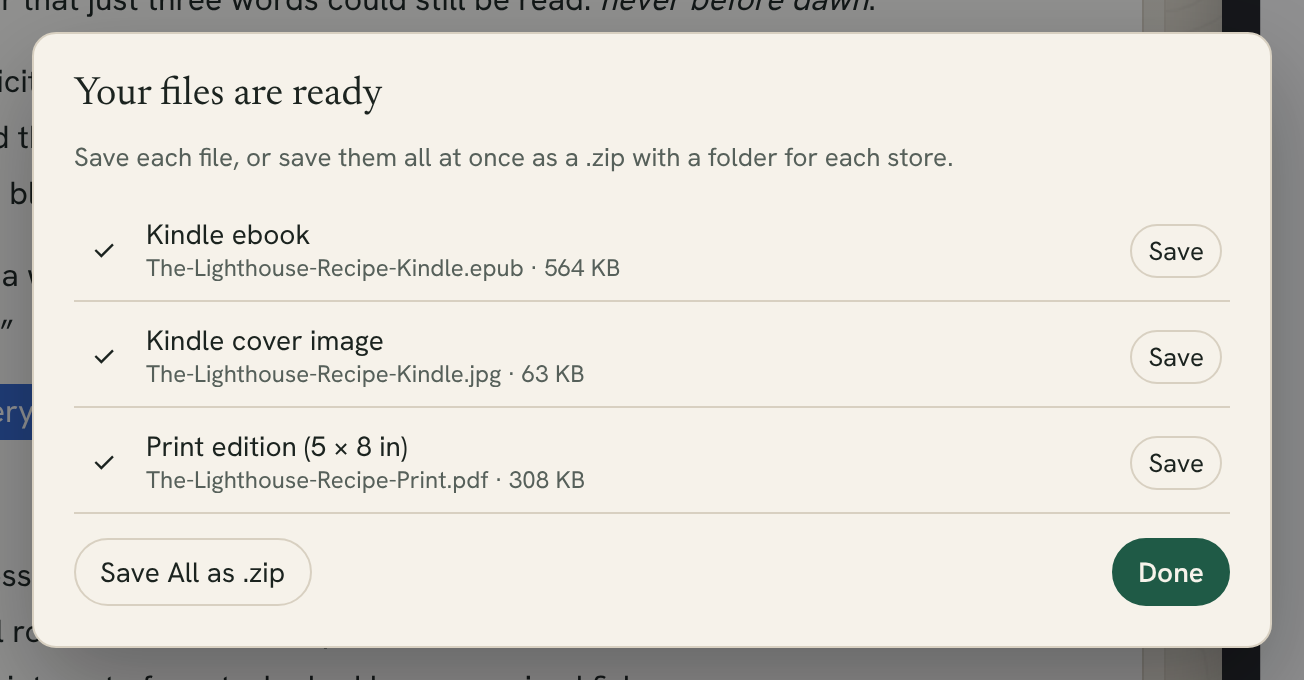
- When Your files are ready appears, click Save beside each file and choose where to save it. Or click Save All as .zip to save everything at once, with a folder for each store.
Fleuron remembers the stores you chose, so next time you can click Generate straight away. See Generating Books.
What's next
You've made your first book! From here:
- Check your files before you upload them: Proofing and Uploading to Stores.
- Write your Amazon description and keywords: Store Listing and Royalty Calculator.
- Make a cover for your paperback: Print Cover Template.
- Add your other books and pen names: The Library and Author Profiles and Back Matter.