Writing Tools
Track Changes and Comments
Track Changes works like it does in Word. With it on, everything you type is marked as added and everything you delete is marked as deleted, so you can look over each edit later and keep it or undo it. Comments let you leave notes on any part of your text. This article covers both.
Comments never appear in your book, and your generated books read as if every tracked change had been accepted.
Turning Track Changes on and off
Click Track Changes at the right end of the editor toolbar. While it's on, the button says Tracking Changes. Click it again to turn it off.
You can also choose Edit ▸ Track Changes ▸ Track Changes.
Track Changes is set for each book, and Fleuron remembers it.
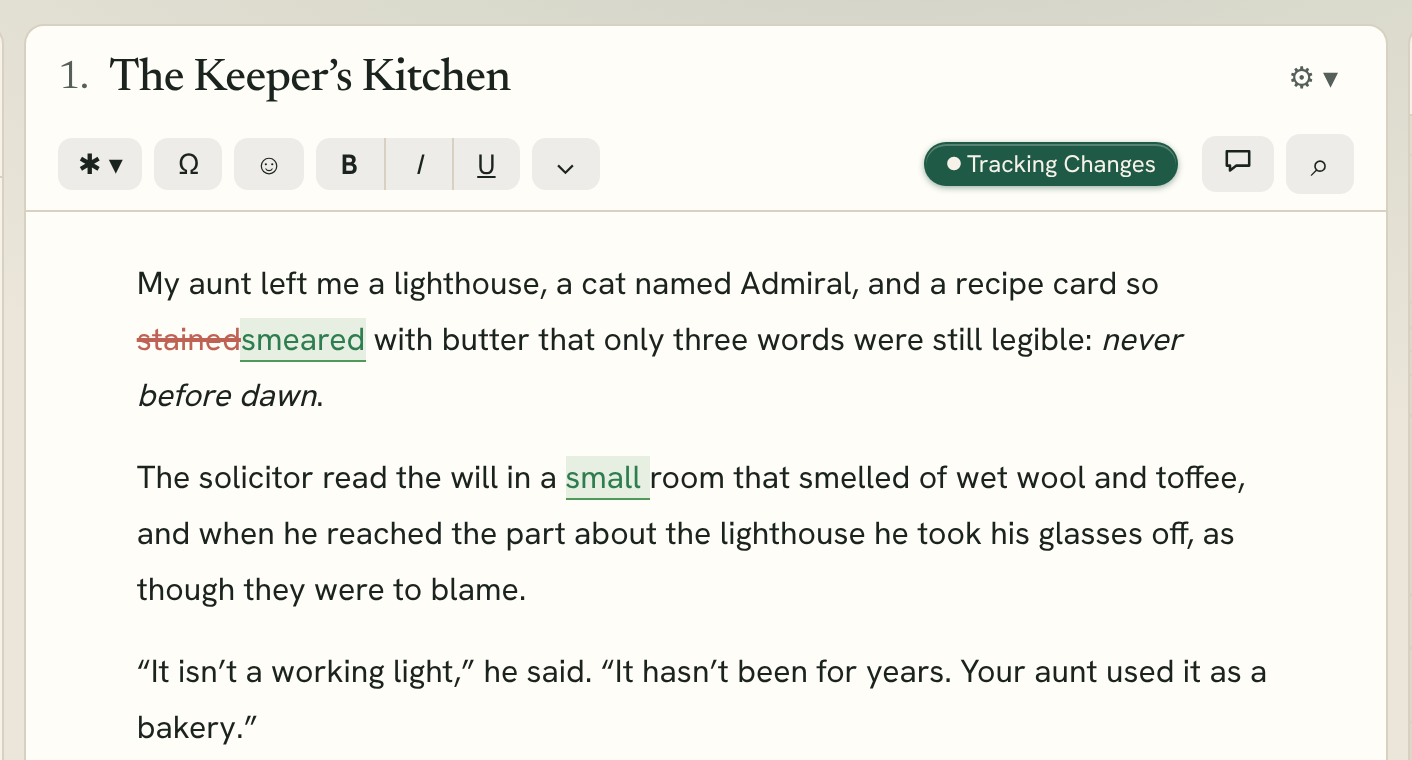
How changes look
- Text you add is marked as added.
- Text you delete stays in place, marked as deleted, until you accept or reject the change.
- If you delete text that is itself marked as added, it simply disappears.
Replacing words with Replace or Replace all in the find bar is tracked too: the old words are marked deleted and the new ones added.
Note: Joining two paragraphs (pressing Delete at the start of one) is an ordinary edit, not a tracked change.
Accepting or rejecting one change
- Click a marked change in your text.
- A small box shows what was added or deleted, and when.
- Click Accept to keep the change, or Reject to undo it.
Reviewing all changes and comments
Choose Edit ▸ Track Changes ▸ Changes & Comments…. The window has three tabs:
- Changes lists every tracked change in the book, with the chapter it's in. Click Accept or Reject beside each one, or click the change to jump to it.
- Comments lists every open comment. Click one to jump to it, or click Resolve.
- Resolved keeps the comments you've resolved, for reference. Click Delete to remove one for good.
At the bottom, Accept All and Reject All deal with every tracked change in the whole book at once. Fleuron asks before it goes ahead. You can also choose Edit ▸ Track Changes ▸ Accept All Changes or Reject All Changes.
The Track changes tick box at the top of the window turns tracking on or off.
Adding a comment
- Select the text you want to comment on.
- Click the comment button in the editor toolbar, or press ⌥⌘M. You can also choose Text ▸ Add Comment, or right-click the selection and choose Add Comment.
- Type your comment.
- Click Done (or press ⌘Return).
The text you commented on is highlighted. Click it any time to read or change the comment.
Note: A new comment you leave empty is removed when you close it.
Resolving and deleting comments
Click the highlighted text to open the comment, then:
- Resolve removes the highlight but keeps the comment under Resolved in Changes & Comments.
- Delete removes the comment completely.
Before you generate
If your book still has tracked changes when you click Generate, Fleuron tells you how many need reviewing. Click Generate to go ahead anyway (the books read as if every change were accepted), or Cancel to go to the list of changes first. See Generating Books.
Tip: Want a safe copy before a big edit? Take a chapter snapshot or save a named version first. See Snapshots and Versions.