Getting Started
A Tour of the Window
This article shows you around Fleuron: the Library, where all your books live, and the book window, where you write, style and preview one book. It also lists what's in each menu.
Two kinds of windows
When you open Fleuron, the Library window appears. It shows all your books. Each book you open gets a window of its own, so you can have several books open side by side.
- To go back and forth between the Library and the book you were working on, press ⌘` (or choose Window ▸ Switch Between Library and Book).
- Window ▸ Library brings the Library to the front. The Window menu also lists every open book, so you can jump to one.
- Closing a book window saves the book first. If you close every window, click Fleuron's icon in the Dock and the Library comes back.
The Library
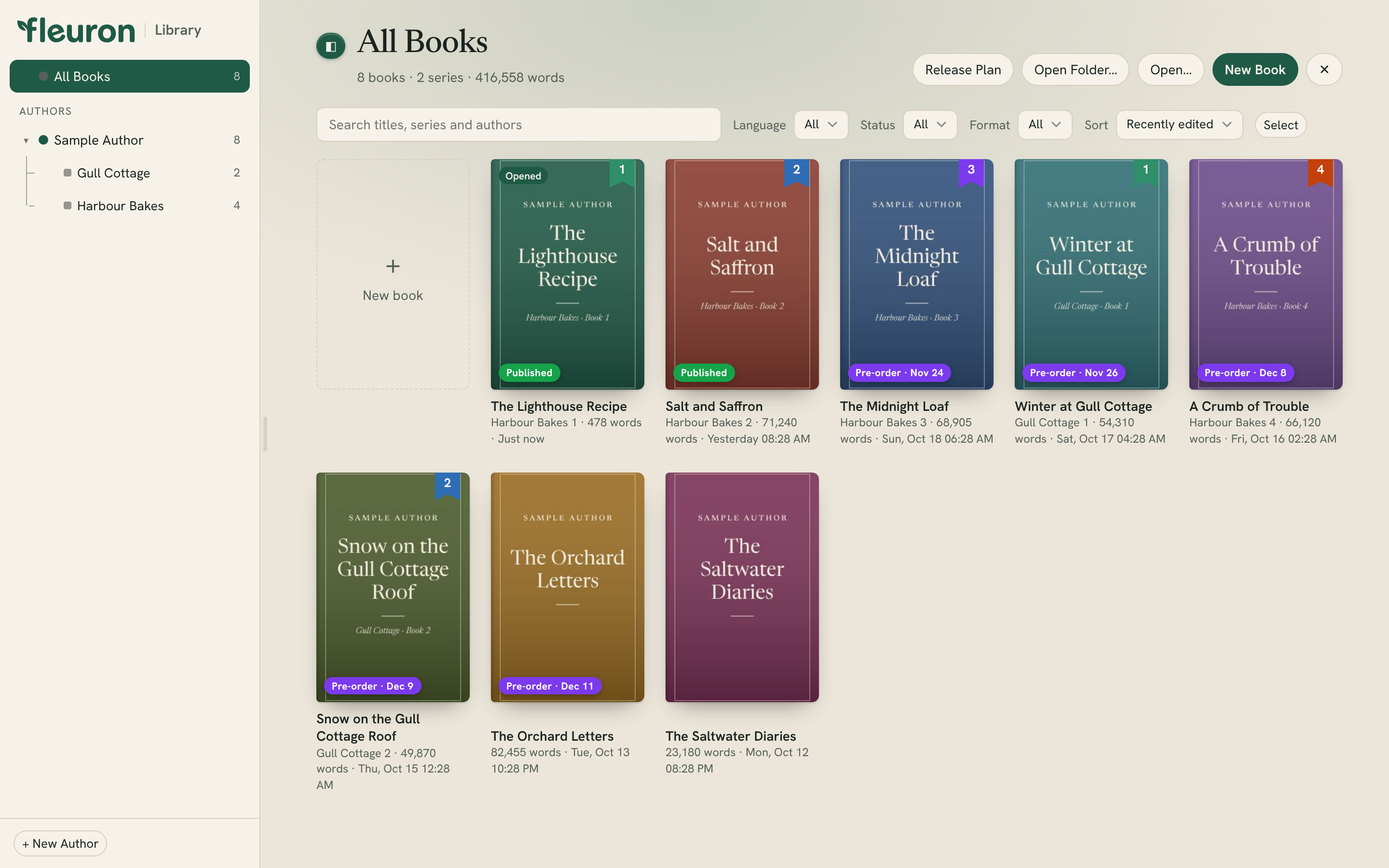
- The authors list on the left shows your pen names and their series. + New Author adds one. The ◧ button hides or shows the list, and you can drag its edge to make it wider or narrower.
- The buttons at the top: Release Plan, Open Folder…, Open… and New Book. When an author is chosen, Edit Author… appears too.
- Search and filters: search titles, series and authors, or narrow the list by Language, Status, Format, and choose how to Sort it.
- Your books: click a cover to open that book in its own window.
To learn more, see The Library.
The book window
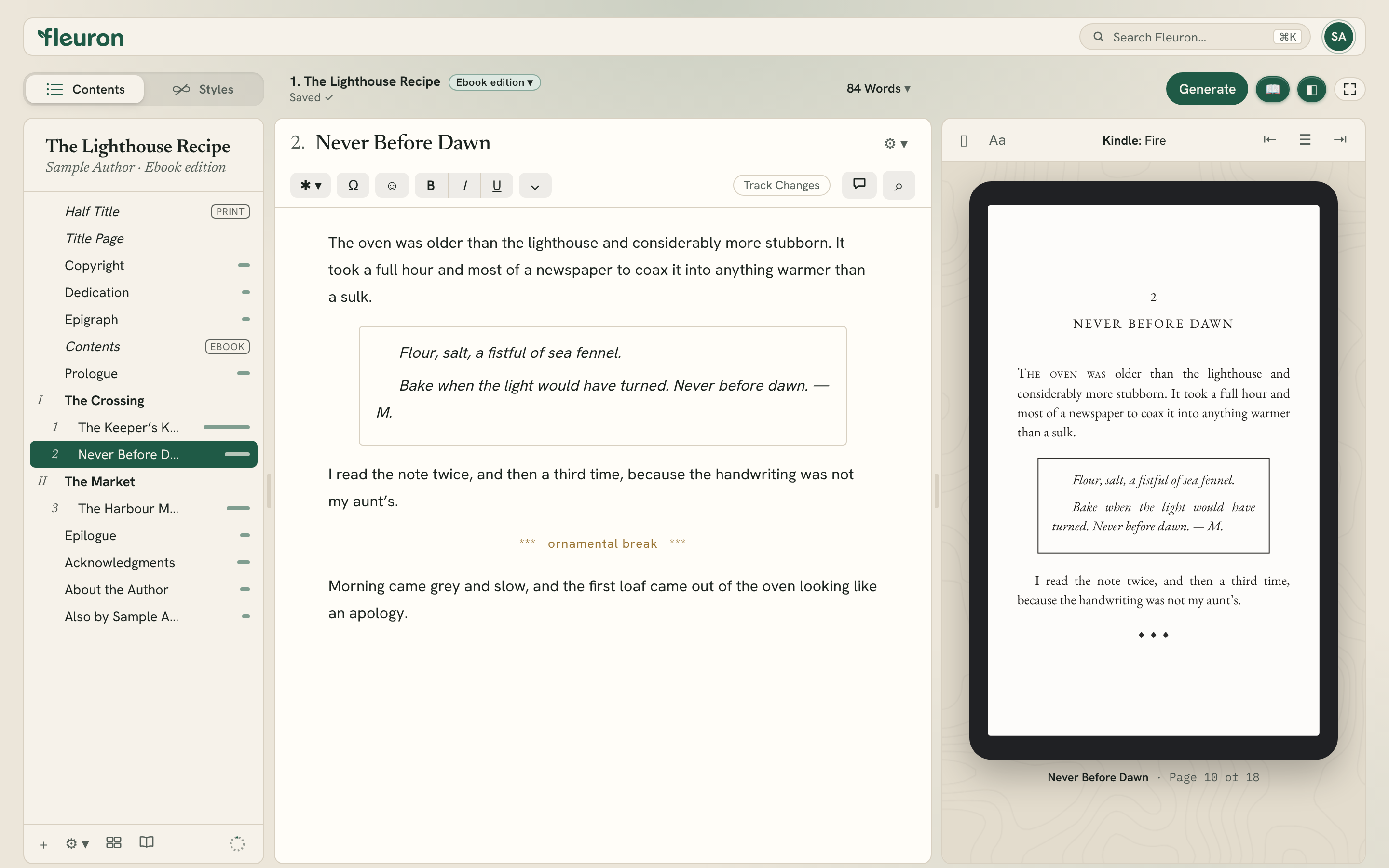
A book window has a bar across the top and three panes: the sidebar on the left, the editor in the middle and the preview on the right.
The top bar
- The Fleuron button at the far left opens the Fleuron menu.
- Search Fleuron… (⌘K) finds any chapter, tool, setting or Codex entry, and can search your book's text. See Search Fleuron and Find & Replace.
- My Account (the round button with your initials) shows your writing stats.
- Contents and Styles switch the sidebar between your book's chapters and the book styles.
- The book's title sits in the middle, with a small label saying which edition this is (click it to change it) and the save status underneath, such as Saved ✓, Edited or Not saved to a file yet.
- The word count opens a menu where you choose what to count (chapter, body matter, book, or % through book) and open Graph Word Count… or Writing Goals & Sprints….
- Generate makes your ebooks and print PDF. See Generating Books.
- 📖 shows or hides the preview, ◧ shows or hides the sidebar, and the Focus Mode button hides more each time you click it.
The sidebar
When Contents is chosen, the sidebar lists every element of your book in order: title page, copyright, chapters, back matter and so on.
- The book card at the top shows the title and author. Click it to open Title Info and the cover.
- Click an element to edit it. Drag elements to reorder them.
- At the bottom: + adds a chapter, ⚙ ▾ opens the element actions (Add Element, Add Multiple Elements…, Reuse Elements From… and more), then buttons for the Corkboard and Outliner, the Codex, and a ring that shows your writing goal.
The editor
The middle pane is where you write.
- At the top: the element's title, and a ⚙ ▾ button with the element's settings (its type, which editions include it, where it begins in print, and more).
- The toolbar: ✱ ▾ adds a text feature (subheads, ornamental breaks, images, lists, quotes, text conversations, links, notes), Ω inserts special characters, ☺ inserts an emoji, then B, I, U and ⌄ for more text styles. On the right are Track Changes, the comment button and ⌕ for Find and Replace.
See The Text Editor and Adding Text Features.
When Styles is chosen, the middle pane shows the book styles instead. See Applying Styles.
The preview
The right pane shows your book as readers will see it.
- The device name in the middle (or the ▯ button) chooses a device: Kindle, Apple Books, Nook, Kobo, Google Play, a generic e-reader, or Print for two-page spreads.
- Aa changes the reader's text size, font and page colour (white, sepia or black), as readers can on their devices.
- ⇤, ☰ and ⇥ go to the previous chapter, any chapter, or the next chapter. The ‹ and › arrows turn pages.
See Previewing Your Book.
Tip: You can drag the edges between the panes to resize them. In a narrow window, Fleuron leaves the preview out so the text has room. Click 📖 to bring it back.
The menus
On a Mac, Fleuron's menus are in the menu bar at the top of your screen, like any Mac app. The book menus (Chapter, Text and Preview) are greyed out in the Library window, because no book is open there.
- Fleuron: Library…, My Account…, About Fleuron, Settings… (⌘,), and the Workspace, Design and Appearance submenus.
- File: new books and box sets, Open…, Open Recent, Open Folder…, importing and Check Import…, Close, Save, Save As…, Show in Finder, Manage Backups…, Revert to Saved / Version History…, reimporting and reusing elements, Generate Books…, Word and narrator script export, Print Settings…, the store listing, the print cover template, Large Print Check…, Book Properties (Title Info)… and Book Settings….
- Edit: undo, copy and paste, Find, Track Changes, Manuscript Health Check…, Speech (read aloud), spelling, substitutions, transformations (upper case, lower case), emoji and special characters.
- Chapter: add elements, create parts and volumes, Convert To, Status, Label, headings, Include In, Begin On, page breaks, splitting and merging, snapshots, moving between chapters, Numbering… and Terminology….
- Text: comments, notes settings, bold, italic, underline, More Styles, Show Only In, and every text feature you can add.
- Preview: Device, page turning, chapter jumping, and matching the editor and the preview.
- View: the sidebar (Navigator) and preview, Contents and Styles, the Corkboard, Outliner, Timeline and Codex, word count tools, Focus Mode, editor text size and font, the preview background, Typewriter Scrolling, Invisible Characters and full screen.
- Window: minimise and zoom, the Library, and your open books.
- Help: Search Fleuron…, Keyboard Shortcuts and About Fleuron.
Note: Some tools only appear in some workspaces. For example, the Corkboard and Timeline are hidden in the Non-fiction workspace. See Workspaces.
For all the shortcuts, see Keyboard Shortcuts.