Your Book
Title, Author and Book Settings
Everything that describes your book as a whole lives in one place: its title and author, the ebook cover, the answers KDP asks for, and the book's settings. This article walks through each tab.
Opening Title Info
Any of these opens it:
- Click the book's title and author at the top of the sidebar.
- Choose File ▸ Book Properties (Title Info)….
- Select the Title Page in the sidebar and click Edit title info.
Title Info takes the place of the text while you work on it. Four tabs run across the top: Title Info, Ebook Cover, Publishing and Book Settings. When you're done, click Done (or ‹ Back to your chapter), or press Esc.
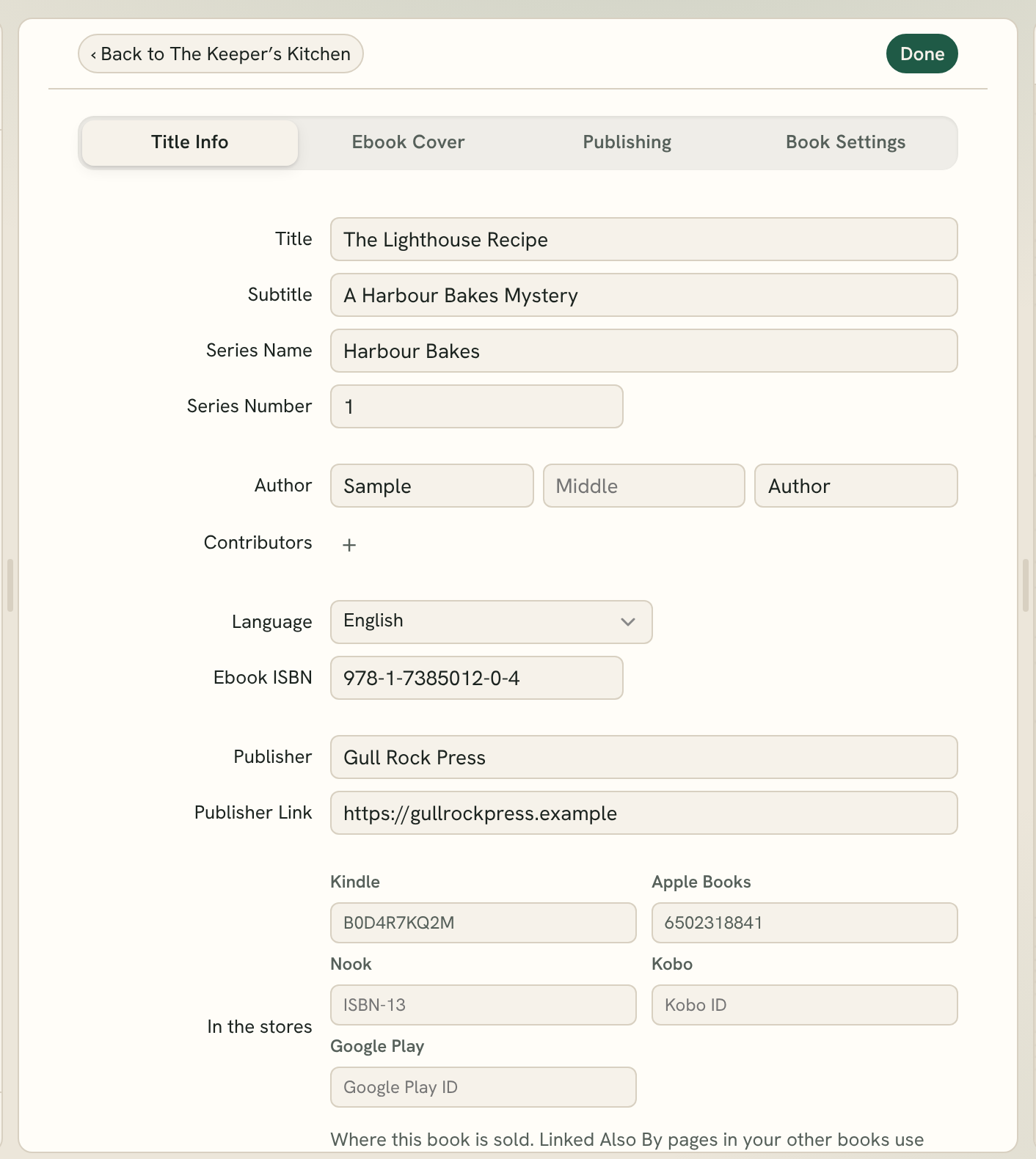
The Title Info tab
- Title and Subtitle.
- Series Name. Once you type one, a Series Number box appears below it.
- Author, in three boxes: First, Middle and Last.
- Contributors: click + to add a name and choose a role: Author, Editor, Illustrator, Translator, Photographer, Foreword author or Narrator. Click − to remove one.
- Language: English, Swedish, Danish, Norwegian, Finnish, German, Dutch, French, Spanish, Italian, Portuguese or Polish.
- Ebook ISBN (optional).
- Publisher and Publisher Link (both optional).
- In the stores: this book's ID at Kindle (the ASIN), Apple Books, Nook (the ISBN-13), Kobo and Google Play. You can type the ID or paste the book's store page link.
The Title Page is built from these details: the title, subtitle, series, author, contributors (for example "Edited by" or "Translated by") and publisher. You don't type the title page yourself.
The book's language also sets the words Fleuron puts into the book, such as "Chapter" and "Contents". You can change those words in Book Settings (see Terminology below).
Tip: Fill in In the stores once each book is out. The Also By pages in your other books use these IDs, so every title listed there becomes a store link. See Author Profiles and Back Matter.
The Ebook Cover tab
- Click the cover box to choose a picture (PNG, JPEG, GIF or WebP).
- Check the size under it. Fleuron asks for at least 2560 pixels high, and tells you whether your picture meets every store's size.
- Under Accessibility Description, choose Book Title to describe the cover by the book's title, or Custom to write your own.
Click Remove cover to take it off again.
The cover is added to the start of every ebook and saved as a separate JPEG for each store. It isn't used in the print edition. For a picture at the front of the paperback, add a Full Page Image set to print only (see Pictures). For the paperback's real cover, see Print Cover Template.
The Publishing tab
The Publishing tab lists everything KDP asks for, each with a Copy button, so you can fill in the KDP dashboard from top to bottom. It also holds the book's status and release date, and Fetch from Amazon (beta). See Store Listing and Royalty Calculator, Book Status and Release Plan and Fetch from Amazon.
The Book Settings tab
You can also open these settings with File ▸ Book Settings….
- Status: This book is Draft, Pre-order or Published.
- Platforms: the stores you publish to: Kindle, Apple Books, Nook, Kobo, Google Play and Generic. Generate makes one ebook for each, and store links show a box for each.
- Store links: the Amazon store for Kindle links (which Amazon country your links go to), this book's own store links with Visit and Copy buttons, an Amazon affiliate tag and an Apple Books affiliate token (both optional).
- Numbering: the First chapter number, and whether Chapter numbers across parts continue or start again in each part.
- Terminology: the words Fleuron puts into the book for Chapter, Part, Contents and Book. For example, "Section" instead of "Part". Leave a box empty to use the word for the book's language.
- Print: the trim size and page count, a Print Settings… button, and the Headers and footers layout. See Print Overview and Settings.
- Workspace: which tools Fleuron shows for this book. See Workspaces.
- Generation: Kindle image sizing and the Generic ebook format (EPUB 3 or EPUB 2), and two choices for file names. These apply to all your books.
- Back matter: Keep Also By, About the Author and Newsletter pages up to date from the Library. See Author Profiles and Back Matter.
- Editing: Smart quotes (turn straight quotes into curly ones as you type) and Capitalize the first letter of each sentence as you type. Both are on for new books.
Tip: Chapter ▸ Numbering… and Chapter ▸ Terminology… jump straight to those parts of Book Settings.
Which edition this is
Next to the book's title at the top of the window is a small button that names the edition, such as Ebook edition. Click it to choose Ebook edition, Print edition, Paperback edition, Hardcover edition or Large Print edition, or Other… to type your own name, like "Special". The edition shows on the cover in the Library and wherever the book is named, so you can tell your ebook and paperback apart.