Your Book
Ebook-Only and Print-Only Content
One manuscript makes all your editions, but some things belong in only one of them: a QR code that only makes sense on paper, a "buy the next book" link for Kindle readers, a contents page you only want in the ebook. This article shows how to mark text, pictures and whole elements for some editions only.
Marking a passage
- Click in the paragraph, or select several paragraphs.
- Choose Text ▸ Show Only In, or select the text, right-click it and choose Show Only In.
- Choose where the passage should appear:
- All Editions (the normal setting),
- Ebooks (all ebooks, but not print),
- Print (the print edition only),
- or, under One Store’s Ebook, Kindle, Apple Books, Kobo, Nook or Google Play.
You can tick more than one store. For example, tick Kindle and Kobo for a passage that should appear in those two ebooks only. Choose a store again to untick it, or choose All Editions to clear the mark.
In the editor, a marked passage sits in a tinted box labelled Only in: with where it shows. The box is only in the editor, not in your book.
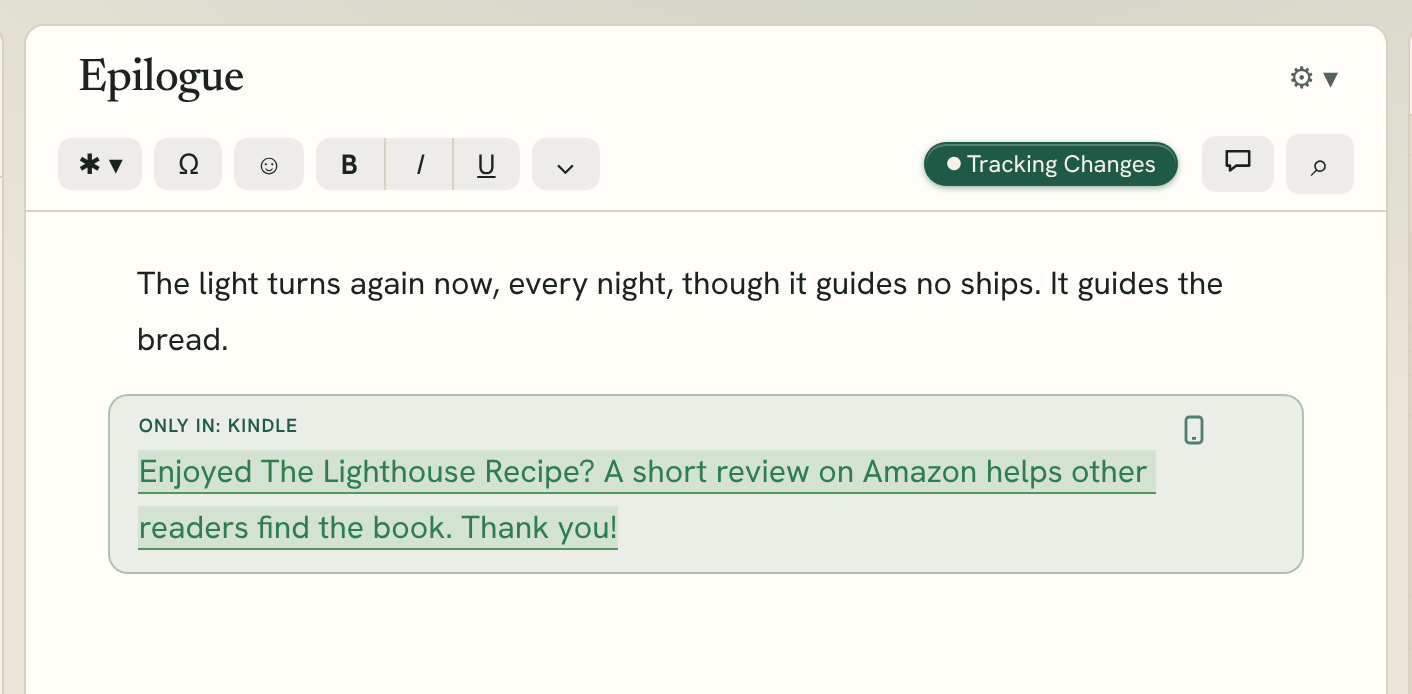
Tip: Write the passage once for each store. A "Leave a review" paragraph can link to Amazon in a Kindle-only copy, and to Apple Books in an Apple Books-only copy.
Marking a feature
Text features such as block quotes, lists, alignment blocks and text conversations have the same choice in their own menu:
- Click inside the feature.
- Click ⚙ ▾ on its frame and hold the pointer over Include In.
- Choose All Editions, Ebooks Only, Print Only, or one or more stores under One Store's Ebook.
See Adding Text Features.
Marking a picture
- Click the picture in the editor.
- In Image properties, change Include in to Ebooks Only or Print Only.
The picture shows a small label in the editor. To use a colour map in the ebook and a black-and-white one in print, add both and mark one for each. See Pictures.
Heading images have their own setting: Include In under Heading Settings in Styles. See Chapter Headings.
Marking a whole element
Front matter, back matter and other elements can belong to one kind of edition too:
- Select the element in the sidebar.
- Choose Chapter ▸ Include In and choose All Editions, Ebooks Only or Print Only. You can also click ⚙ ▾ beside the element's title and change Include in.
The element gets a small ebook or print tag in the sidebar.
A few elements start this way:
- The Half Title is print only.
- The Table of Contents is ebook only. To give your paperback a contents page, set it to All Editions.
Chapters always appear in every edition. To keep part of a chapter out of one edition, mark the passage instead.
Note: Include In on a Volume applies to everything inside it.
Checking each edition
The preview shows each edition as it will be:
- Choose a device in Preview ▸ Device. A Kindle device shows Kindle-only passages and hides passages for other stores; an Apple Books device shows Apple Books-only passages, and so on.
- Choose Print to see the print edition, without the ebook-only content.
See Previewing Your Book. When you generate, each file gets only the content meant for it. See Generating Books.
Print-only page settings
Begin on (print) (whether an element starts on the right or left side of a printed spread) and the Print layout of a full-page image only change the print edition. Ebooks ignore them.