Writing Tools
Search Fleuron and Find & Replace
Fleuron has two kinds of search. Search Fleuron finds anything in the app: a tool, a menu command, a setting, a chapter or a Codex entry. Find and replace searches the text of your book, and can change a word everywhere at once. This article covers both.
Search Fleuron
- Click Search Fleuron… at the top of the window, or press ⌘K. You can also choose Help ▸ Search Fleuron….
- Type what you're looking for, in your own words.
- Use ↑ and ↓ to choose a result, and press Return to open it. Or click it.
Press Esc to close the search without choosing anything.
What you can search for
- Tools and commands: every item in Fleuron's menus. Each result shows which menu it's in, and its keyboard shortcut if it has one.
- Your chapters and other elements, by title or number (“chapter 12”).
- Codex entries: characters, places, items, lore and groups, by name or nickname, when the Codex is part of your workspace. See The Codex.
- Book Settings sections, such as Numbering, Workspace or Back matter.
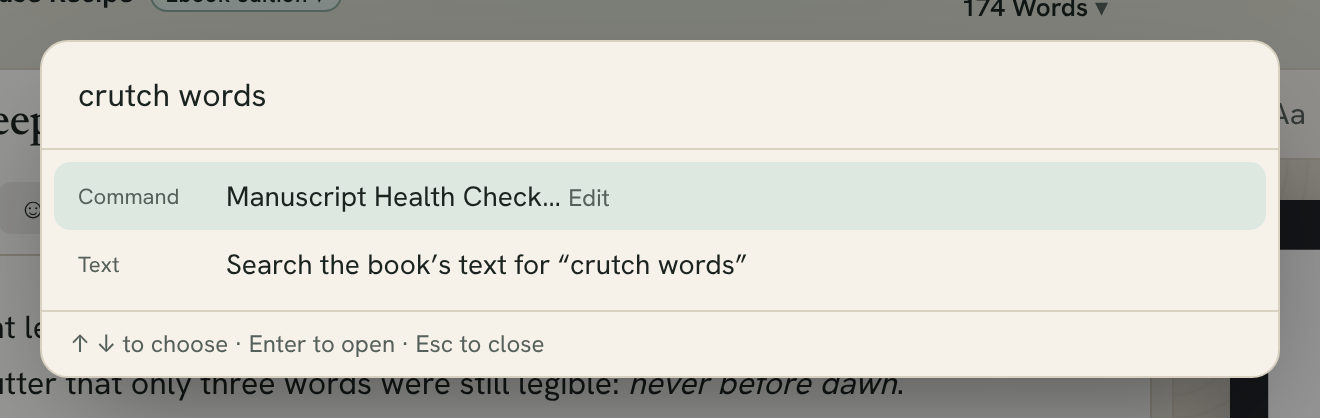
You don't need the exact name. Search Fleuron knows everyday words: “crutch words” finds the Manuscript Health Check, “audiobook” finds the narrator script, and “spine” finds the print cover template. It also forgives a typo.
Searching your book's text
When you type something, the last result is Search the book’s text for “…”. Choose it to look for those words in your book with the find bar.
Finding text in your book
- Click the ⌕ button in the editor toolbar, or press ⌘F (Edit ▸ Find ▸ Find…).
- Type in the Find in book box. Fleuron shows how many it found in the whole book.
- Press Return to go to the next one, or ⇧Return to go back. You can also use the ‹ and › buttons.
Fleuron searches every chapter and element you write in, and opens each chapter as it gets there.
To narrow the search, tick:
- Match case: “Rose” finds the name but not the flower.
- Whole words: “art” doesn't find “start”.
Press Esc while you're in the find box, or click ⌕ again, to close the find bar.
Tip: Select a word before you press ⌘F, and it goes straight into the find box. Or select it and press ⌘E (Edit ▸ Find ▸ Use Selection for Find).
Replacing text
- Press ⌥⌘F (Edit ▸ Find ▸ Find and Replace…), or open the find bar.
- Type what to find, and what to put in its place in the Replace with box.
- Click Replace to change the match you're on and go to the next one, or Replace all to change every match in the book.
After Replace all, Fleuron tells you how many it replaced. Click Undo in that message if you change your mind.
Note: With Track Changes on, each replacement is a tracked change you can accept or reject later. See Track Changes and Comments.
Other find commands
In Edit ▸ Find:
- Find Next (⌘G) and Find Previous (⇧⌘G)
- Jump to Selection (⌘J) scrolls back to the text you have selected.
- Find Text Conversations… turns lines like “Name: message” into chat bubbles. See Adding Text Features.
Tip: To rename a character everywhere, including titles and synopses, use Rename Everywhere… in the Codex instead. See The Codex.