Writing Tools
Read Aloud
Hearing your words read out is one of the best ways to catch a missing word, a repeated one, or a sentence that trips. Fleuron can read any chapter aloud, paragraph by paragraph, and highlights the paragraph it's reading.
Read Aloud uses the voices that come with your Mac, so it's free and private. Nothing you write is sent anywhere to be read.
Reading a chapter aloud
- Open the chapter and click in the paragraph where you want to start.
- Choose Edit ▸ Speech ▸ Start Reading Aloud (or press ⌥⌘R).
Fleuron reads from that paragraph to the end of the chapter. A small bar of controls appears while it reads.
Reading just a selection
- Select the text you want to hear.
- Right-click the selection and choose Read Aloud.
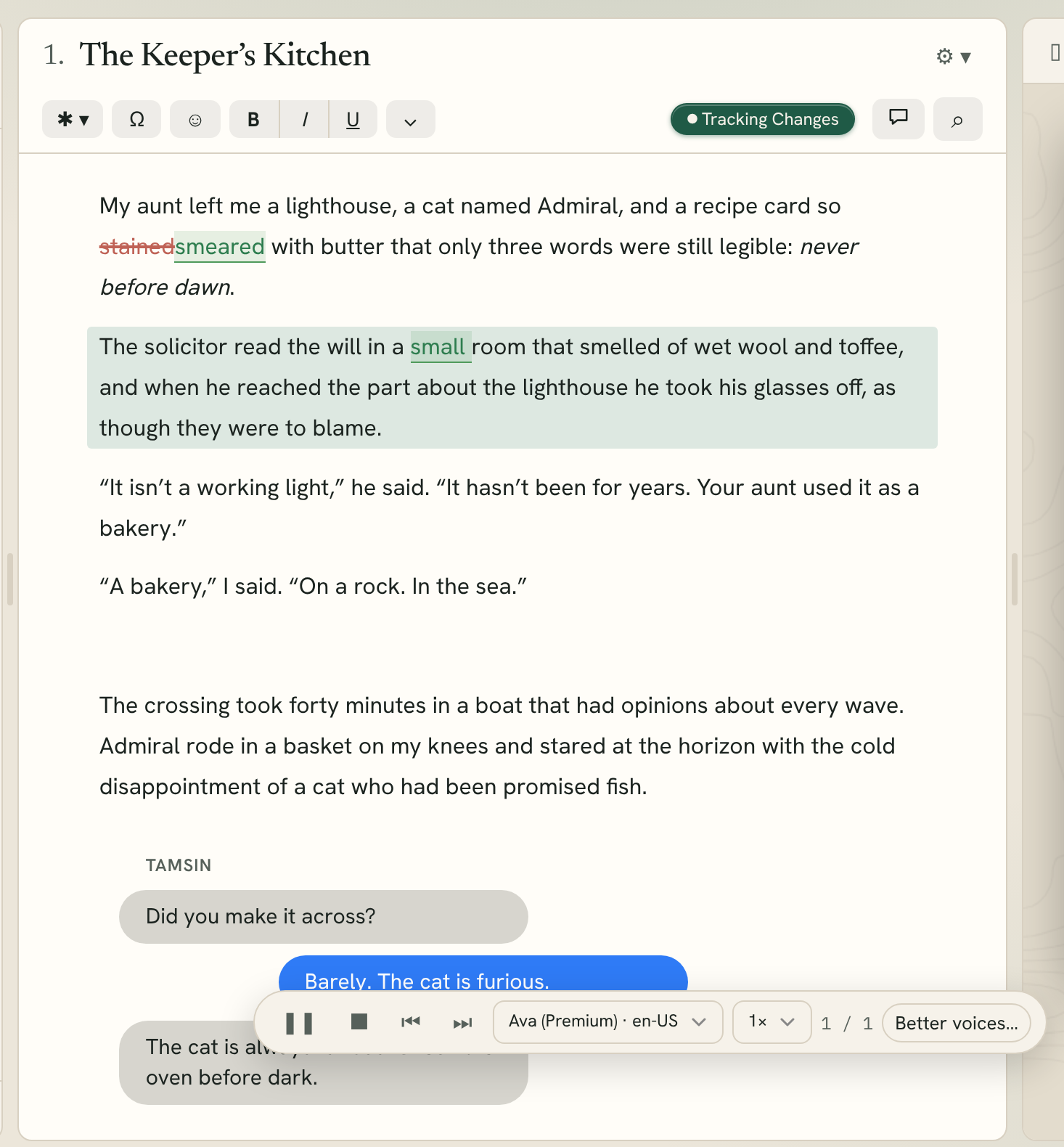
The reading controls
- Pause and Resume (the ❚❚ and ▶ button).
- Stop reading (■). You can also press Esc.
- Previous paragraph and Next paragraph (⏮ and ⏭).
- The voice menu. The best voices are listed under Most natural.
- The speed menu, from 0.8× to 1.8×.
- How far along you are, for example “3 / 12” paragraphs.
The same commands are in Edit ▸ Speech: Pause Reading, Resume Reading and Stop Reading.
Fleuron remembers the voice and speed you choose. The voice menu shows the voices for your book's language (set in Title Info).
Note: Typing in the chapter stops the reading, so the paragraphs Fleuron is following don't get out of step. Start again when you're ready.
Footnote markers and text you've deleted with Track Changes on are skipped.
Getting more natural voices
Your Mac has much more natural voices than the ones it starts with. They're free to download:
- Open System Settings ▸ Accessibility ▸ Spoken Content.
- Next to System Voice, click the ⓘ button or Manage Voices….
- Download a Premium or Enhanced voice. Ava, Zoe, Evan and Nathan are good ones.
- Quit Fleuron and open it again, then choose the new voice in the voice menu.
You can find these steps in Fleuron too: click Better voices… in the reading bar, or choose Edit ▸ Speech ▸ Better Voices….
Tip: Read Aloud is for checking your writing. To prepare an audiobook, see Word Export and Narrator Script.