Headers and Footers
Headers and footers are the lines at the top and bottom of a printed page, such as the author's name, the book title and the page number. They're print only: ebooks don't have them. This article shows how to choose a ready-made layout or make your own.
Choosing a layout
- Click Styles at the top of the sidebar.
- Select your book's style and click its ⚙ button (or click ⌄ and choose Configure Style…).
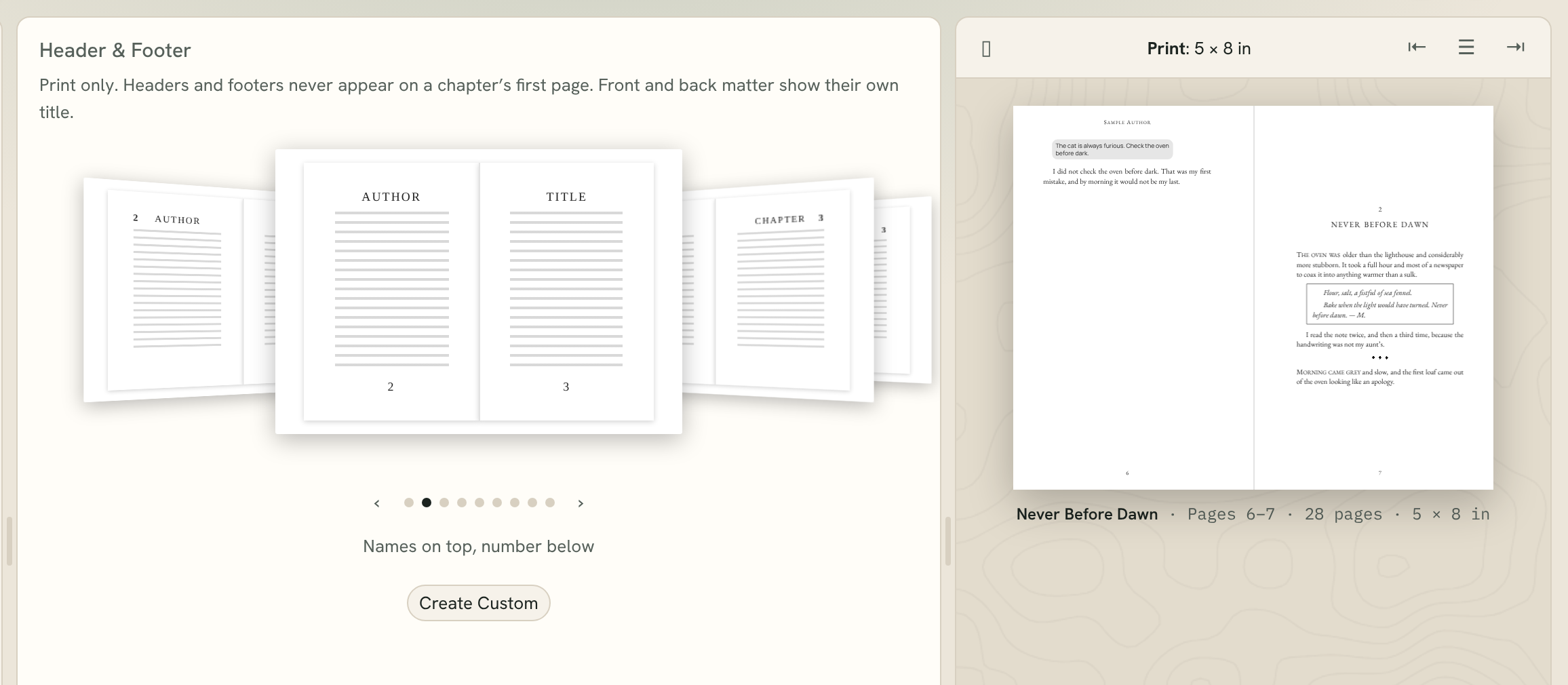
- Click Header & Footer in the sidebar. The preview switches to Print so you can see the result.
- Step through the layouts with ‹ and ›. The one in front is used.
The layouts are:
- Numbers in the header: author on left pages, book title on right pages, page numbers in the outside corner at the top
- Names on top, number below: author and book title at the top, page number centered at the bottom
- Book and chapter titles: book title on left pages, chapter title on right pages, numbers at the top
- Book title on both pages
- Everything in the footer: author and title at the bottom, with the page numbers
- Page numbers only, centered
- Page numbers only, in the corner
- Page numbers at the top
- None
You can also pick a layout in File ▸ Book Settings…, under Print ▸ Headers and footers.
Making your own layout
- In Header & Footer, click Create Custom.
- For the Header and the Footer, choose what goes on the Left page and the Right page: None, Author name, Book title or Chapter title.
- Choose where the Page number goes: Footer, centered, Footer, outside corner, Header, outside corner or None.
- Tick Number chapter opening pages too to show the page number on the first page of each chapter.
Click Hide Custom Settings to put the settings away. Your layout stays in use.
What shows where
- Headers and footers never appear on a chapter's first page. If you tick Number chapter opening pages too, the page number shows there, centered at the foot.
- They appear on chapters and on text pages like a prologue, epilogue, foreword, introduction or afterword. Pages such as the title page, copyright page and blank pages have none.
- Front and back matter, like a foreword or afterword, show their own title instead of the author's name or book title.
- In a box set, each volume's pages show that volume's own title and author.
Page numbers
Where numbering starts is set in Print Settings. With Start Numbering at First Chapter, the pages before your first chapter are numbered in small roman numerals (i, ii, iii). See Print Overview and Settings.
Tip: A chapter title in the header helps readers of non-fiction find their way. For a novel, the author's name and book title are the usual choice.