Writing Tools
Goals, Sprints and Celebrations
Fleuron can help you keep writing: a daily word goal, a goal for the whole book with a deadline, timed writing sprints, and a little cheer when you reach a milestone. This article shows how to set them up, and where to see your progress across all your books.
Opening Writing Goals & Sprints
- Click the goal ring below your contents list.
- Or click the word count at the top of the window and choose Writing Goals & Sprints….
- Or choose View ▸ Writing Goals & Sprints….
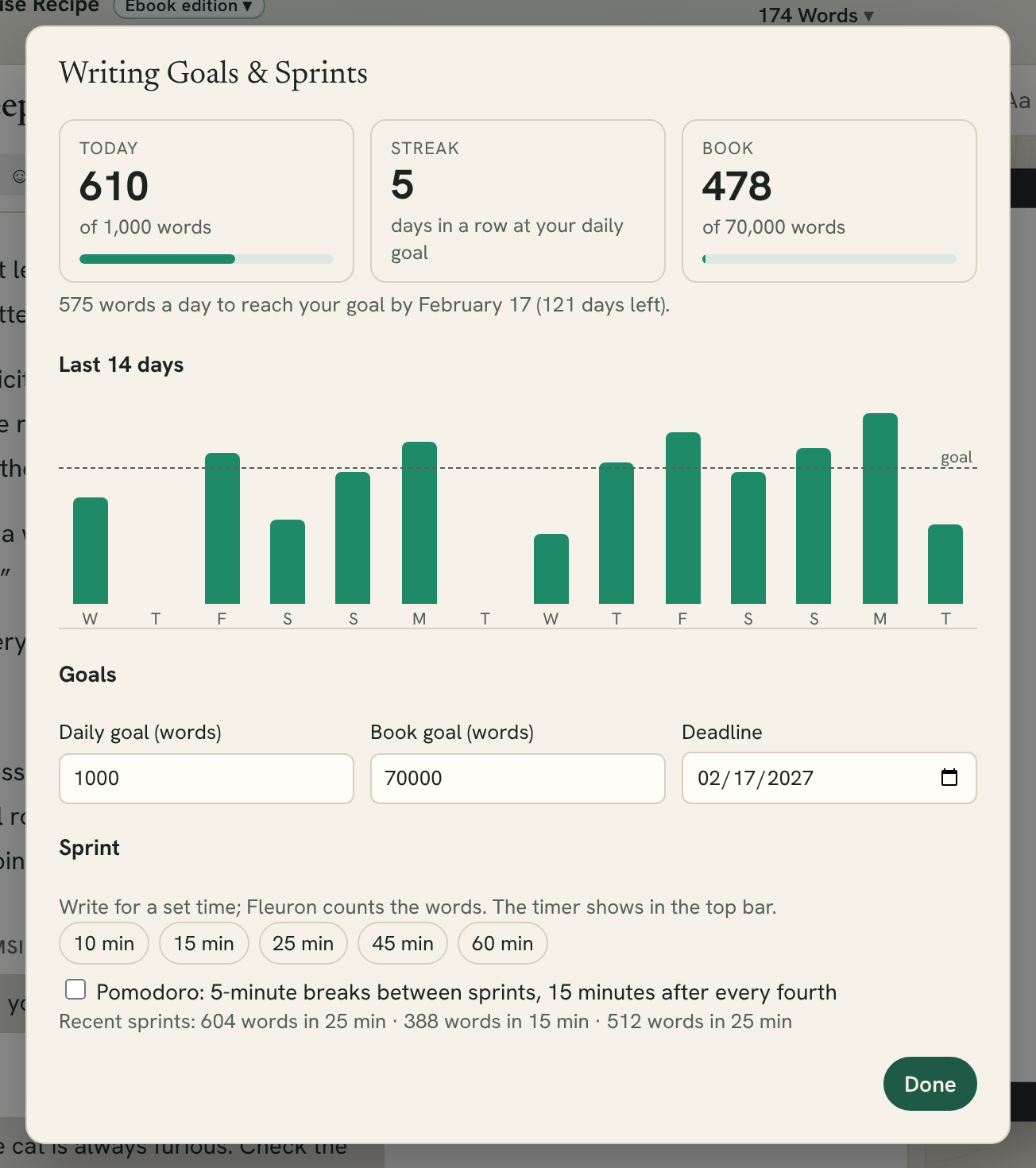
Setting your goals
Under Goals, fill in any of these:
- Daily goal (words): how many words you want to write each day.
- Book goal (words): how long you want the book to be.
- Deadline: when you want to reach the book goal.
Goals belong to each book. With a book goal and a deadline, Fleuron tells you how many words a day you need to finish on time, and how many days are left.
Click Done when you've finished.
Seeing your progress
The top of the window has three tiles:
- Today: the words you've written today, against your daily goal.
- Streak: how many days in a row you've reached your daily goal. You need a daily goal to start a streak.
- Book: the book's word count, against your book goal.
Below them, Last 14 days shows a bar for each day, with your daily goal as a dashed line.
The goal ring below your contents list fills up as you write. It shows today's words against your daily goal, or, if you only set a book goal, the whole book against that. Hover over it to see the numbers.
Note: Today's words are how much your book has grown since the day began. If you cut a scene, today's count goes down.
Writing a sprint
A sprint is a set time of writing. Fleuron counts the words you write.
- Open Writing Goals & Sprints.
- Under Sprint, click 10 min, 15 min, 25 min, 45 min or 60 min.
- Write. The timer and your word count show in the bar at the top of the window.
- When time is up, Fleuron tells you how many words you wrote. To end early, click Stop beside the timer.
Your last few sprints are listed under the sprint buttons.
Pomodoro breaks
Tick Pomodoro before you start a sprint, and Fleuron gives you a 5-minute break after each sprint, then starts the next sprint by itself. After every fourth sprint the break is 15 minutes. Click Stop beside the timer when you're done for the day.
Celebrations
Fleuron gives you a little cheer when you reach a milestone, such as:
- your daily goal (and a streak of days in a row)
- 1,000 words in a day, and more
- a word count in your book, such as 50,000 words
- your book goal
- the end of a sprint
Only words you type count. If you paste or import a lot of text at once and pass a milestone, Fleuron quietly marks it as reached.
Choosing how Fleuron celebrates
- Choose Fleuron ▸ Settings… (or press ⌘,).
- Under Writing, set Celebrations to Fireworks, Just a message or Off.
You can also change it in My Account (see below), where Show me gives you a preview. When a celebration appears, click Thanks! to close it, or Celebration settings to change it.
Note: If your Mac is set to reduce motion, Fleuron shows the message without fireworks.
Your writing across all books: My Account
My Account adds up your writing in every book in your Library. Open it with Fleuron ▸ My Account… or the round button with your initials at the top right of the window.
The Overview shows the words you've written This week and This month, your Writing streak (days in a row you've written), how many books and words are in your Library, your best day, and the books you've worked on most this month.
The word count graph
To see how long each chapter is, click the word count at the top of the window and choose Graph Word Count… (or choose View ▸ Graph Word Count…).
- Chapters shows each chapter's length, with a line at the average.
- Running Total shows how the book adds up, and where the halfway point falls.
Click a chapter in the graph to open it. The word count menu can also show % Through Book: how far through the story the place you're working on is.