Styles and Preview
Fonts
Every book style comes with its own fonts, but you can swap any of them to match your cover. This article shows where to change fonts, how to add fonts from Google Fonts, and how to add a font you've bought.
Changing your book's fonts
- Click Styles at the top of the sidebar.
- Select your book's style and click its ⚙ button (or click ⌄ and choose Configure Style…).
- Click Fonts in the sidebar.
- Click the button beside Headings, Body text or Drop cap, and choose a font from the list.
Your choice is used in the preview, the ebook and the print PDF. Each button says style default while it's using the style's own font, or your choice once you've picked one.
To go back to the style's fonts, click Use the style’s fonts.
You'll find the same font buttons in two other places:
- The Body part of the style has a Body font button.
- Heading Settings has a Font button for the chapter number and one for the title. See The Theme Builder.
Note: Fonts belong to the book, not the style. If you switch to another style, the fonts you chose stay. Reset to Original in a style's ⌄ menu clears them.
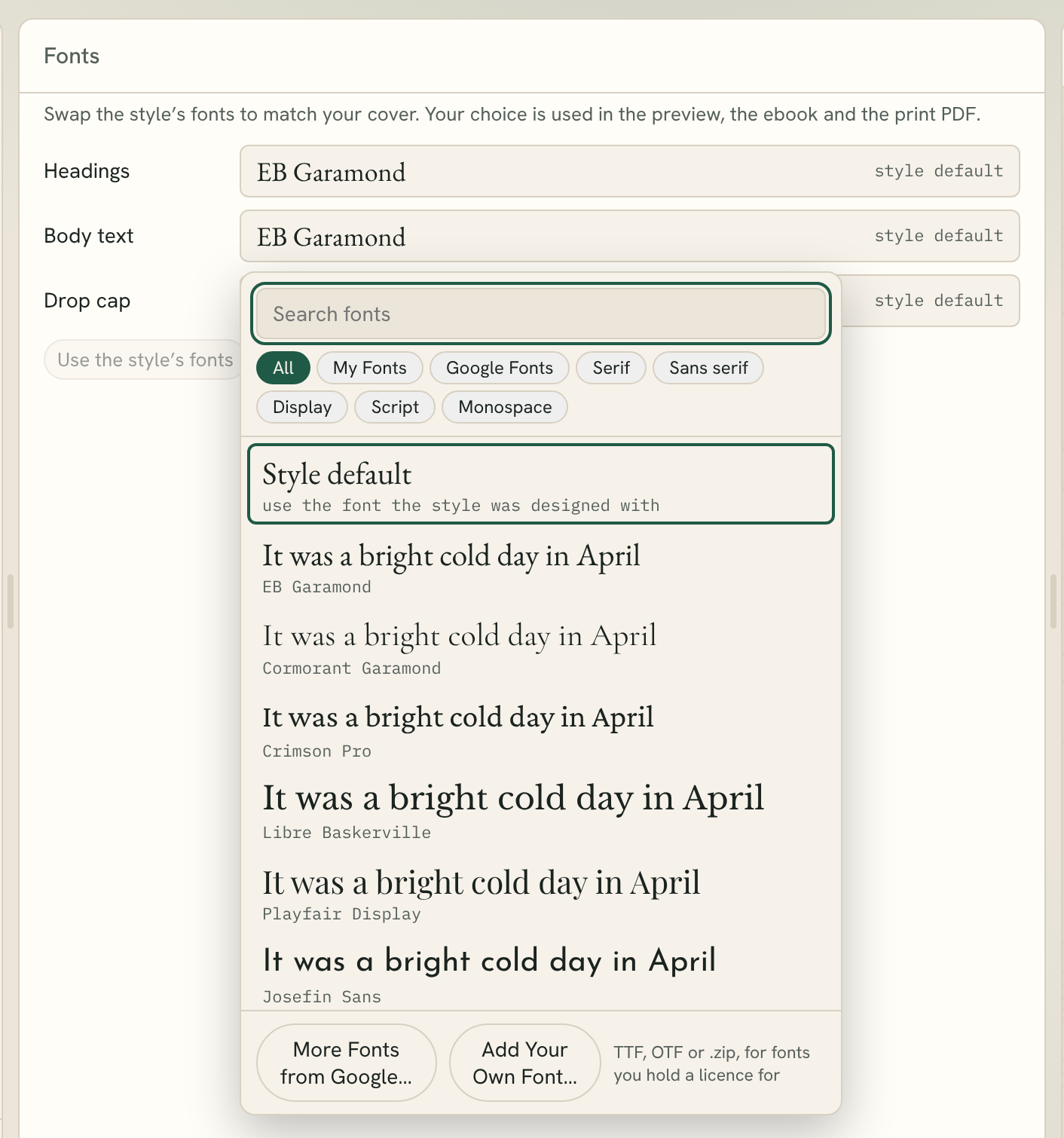
Using the font list
The font list shows a sample in each font: your book's title for headings, a line of text for body text, and a few capitals for drop caps.
- Type in Search fonts to find a font by name.
- Click a group to narrow the list: All, My Fonts, Google Fonts, Serif, Sans serif, Display or Script.
- Style default at the top puts back the font the style was designed with.
Under each font's name, Fleuron adds a note when something is worth knowing:
- no italic: the font has no italic letters. For body text, Fleuron slants the letters instead.
- may be hard to read as body text: a script or display font chosen for body text.
- Western European languages only: the font lacks the letters some other languages need.
Fleuron includes about 100 fonts: serif, sans serif, display and script faces, plus OpenDyslexic and Atkinson Hyperlegible for easy reading. They're all free to use in books you sell.
Adding fonts from Google Fonts
- Open the font list and click More Fonts from Google….
- Search the list, or pick a kind of font from the menu beside the search box.
- Click Add beside the font you want. Fleuron downloads it once.
- Click Use for (for example, Use for Body text) to use it straight away.
Once added, a Google font works offline like the fonts included with Fleuron. It appears under Google Fonts in the font list, in every book. All Google fonts are free to use in books, ebooks and print.
Note: You need an internet connection to see the fonts' previews and add a font. Fonts you've already added keep working offline.
Adding your own font
You can add a font you've bought, or one that's free for commercial use.
- Open the font list and click Add Your Own Font….
- Click Choose Font Files… and choose all the font's files at once, or the .zip file it came in. Fleuron accepts TTF and OTF files.
- Check the Name and Kind Fleuron suggests.
- Fleuron sorts the files into Regular, Italic, Bold and Bold Italic. Use the menu beside each file to change what it's used for, or choose Don’t use.
- Tick the box to confirm you own or have a licence for the font that lets you embed it in ebooks and print books you sell.
- Click Add Font.
Regular, italic and bold make one font. Other weights, like Light, Medium or SemiBold, become fonts of their own. Your fonts appear under My Fonts in the font list, in all your books.
Note: If a font's maker has marked it as not allowed to be embedded, Fleuron warns you. Ebooks and print PDFs have to carry their fonts, so stores or printers may reject the book. Only go ahead if your licence allows embedding.
Tip: Web fonts (.woff or .woff2) can't be used. Ask the font shop for the desktop version (.ttf or .otf). If your font came as a .rar or .7z file, unpack it first, or use a .zip.
Removing a font you added
- Open the font list and click Add Your Own Font….
- Under Added fonts, click Remove beside the font.
Books that use it go back to their style's font.
Fonts and your book file
When you save a book that uses a Google font or a font of your own, the font is saved inside the book file. Open the book on another computer and the font comes with it.
Tip: Fonts look different in different sizes. Check your choice on a few devices and in print in the preview before you generate. See Previewing Your Book.