Writing Tools
The Codex
The Codex is your story's memory: who is who, where things happen, and the objects and history that matter. This article shows how to add entries, let Fleuron find names in your book, see where each one appears, and rename a character throughout the book.
The Codex is for you. It never appears in your book.
Opening the Codex
- Click the Codex button below your contents list.
- Or choose View ▸ Codex (Characters, Places, Items, Lore)….
- Or click Codex… at the top of the Corkboard, Outliner or Timeline.
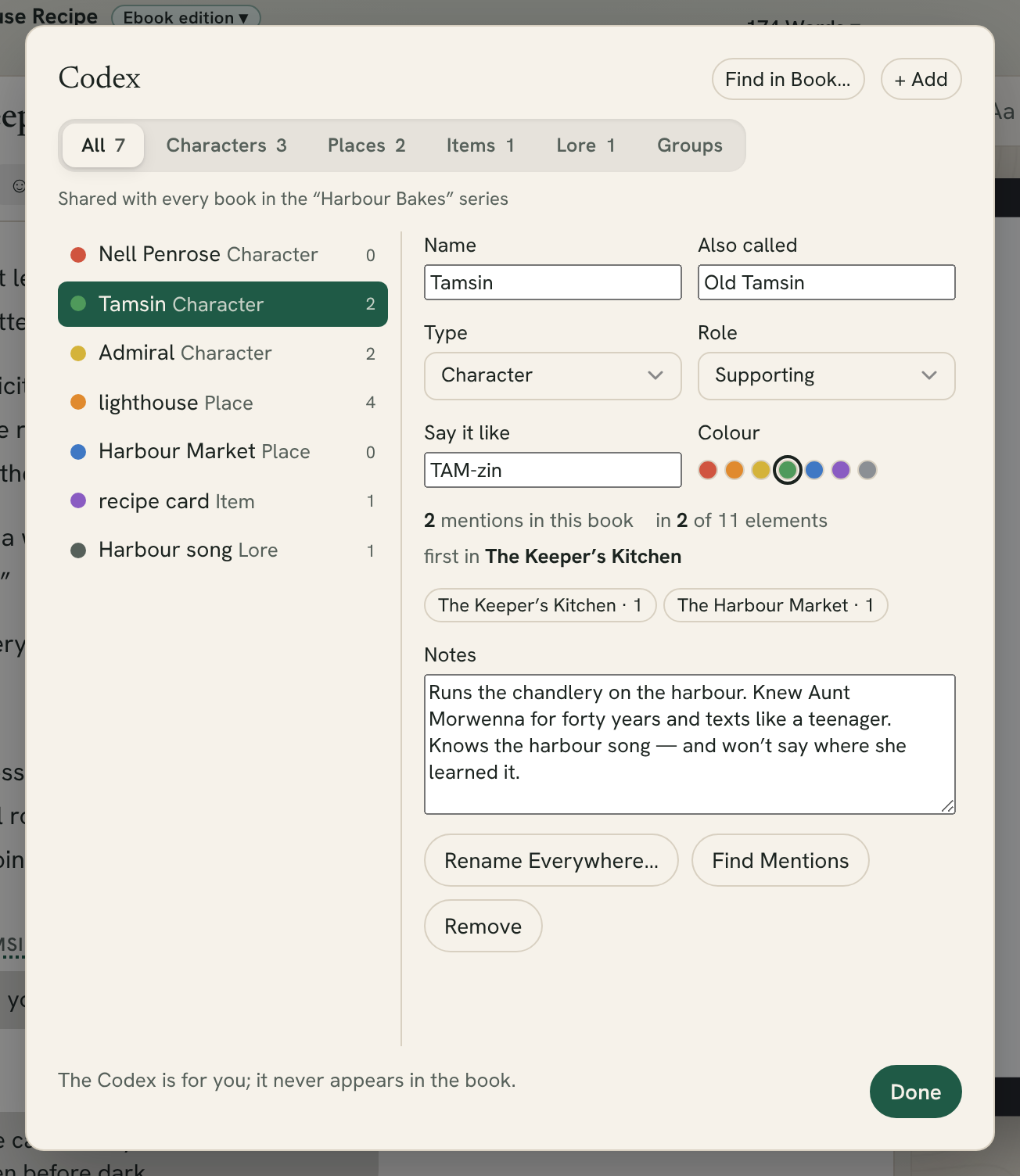
The tabs along the top show All your entries, or just the Characters, Places, Items, Lore or Groups.
Adding an entry
- Click + Add. (On the Places tab it says + Add Place, and so on.)
- Type the Name.
- Fill in as much of the rest as you like:
- Also called: nicknames, titles, a first name on its own. Separate them with commas.
- Type: Character, Place, Item, Lore or Group.
- Role (characters only): Main, Supporting or Minor.
- Say it like: how to pronounce the name, for example “TAM-zin”.
- Colour: used for the entry's dot in the Codex and the Timeline.
- Notes: anything you want to remember.
- Click Done. Fleuron saves as you type.
Note: An entry without a name is removed when you click Done.
Letting Fleuron find names
Fleuron can look through your book for likely names and suggest them.
- Click Find in Book…. (On the Characters tab it says Find Names in Book….)
- Fleuron lists the names, places, items, lore and groups it found, with how often each appears. Tick the ones you want, or click Select All.
- If it missed one, type it in the box at the bottom (choose its kind, if the list shows several) and click Add.
- Click Add to Codex. (If you started from one tab, such as Characters, the button says Add Characters.)
Fleuron only suggests names that turn up more than once. You can change an entry's type later.
Seeing where an entry appears
Choose an entry to see how many times it's mentioned in the book, in how many elements, and where it first appears. For characters, it also shows how many chapters are told from their point of view.
- Click a chapter in the list to jump to that mention.
- Click Find Mentions to step through every mention with the find bar.
- If Fleuron spots words one letter away from the name (like “Tamsyn” for “Tamsin”), it lists them as Possible misspellings. Click one to find it.
Names in the editor
Names from your Codex are underlined while you write. Hover over a name to see its card, with its notes and pronunciation. Click Open in Codex on the card to go to the entry.
To turn the underlines off (or on again), choose View ▸ Highlight Codex Names.
Renaming a character everywhere
- Choose the entry and click Rename Everywhere….
- If the entry has more than one name, choose which name to change.
- Type the new name and click Rename.
Fleuron changes the name in your chapters, titles, notes and synopses. A word written in capitals keeps its capitals. Before renaming, Fleuron saves a version of the whole book, so you can go back with File ▸ Revert to Saved / Version History…. See Snapshots and Versions.
Note: Elements reused from another book are left alone. See Reusing Elements.
Removing an entry
Choose the entry and click Remove. Your book's text isn't changed.
Sharing a Codex across a series
When a book belongs to a series, its Codex is shared with every book in that series by the same author. Add a character in book 2 and it's there in book 3 too.
The top of the Codex tells you whether it is shared. To share it, give the book a series in Title Info. See Series.
Pronunciations for your narrator
The Say it like pronunciations go into the pronunciation guide of the narrator script for audiobooks. See Word Export and Narrator Script.
Tip: The Codex also shows up in Search Fleuron (⌘K): type a character's name to open their entry. See Search Fleuron and Find & Replace.